Table of Contents
Configure a Data Logger
How to configure your data logger from the cloud.
Table of Contents
Remotely configure your ZL6 or ATMOS 41W device, including its status, identity, measurement and report intervals, ports, geolocation, and time zone.
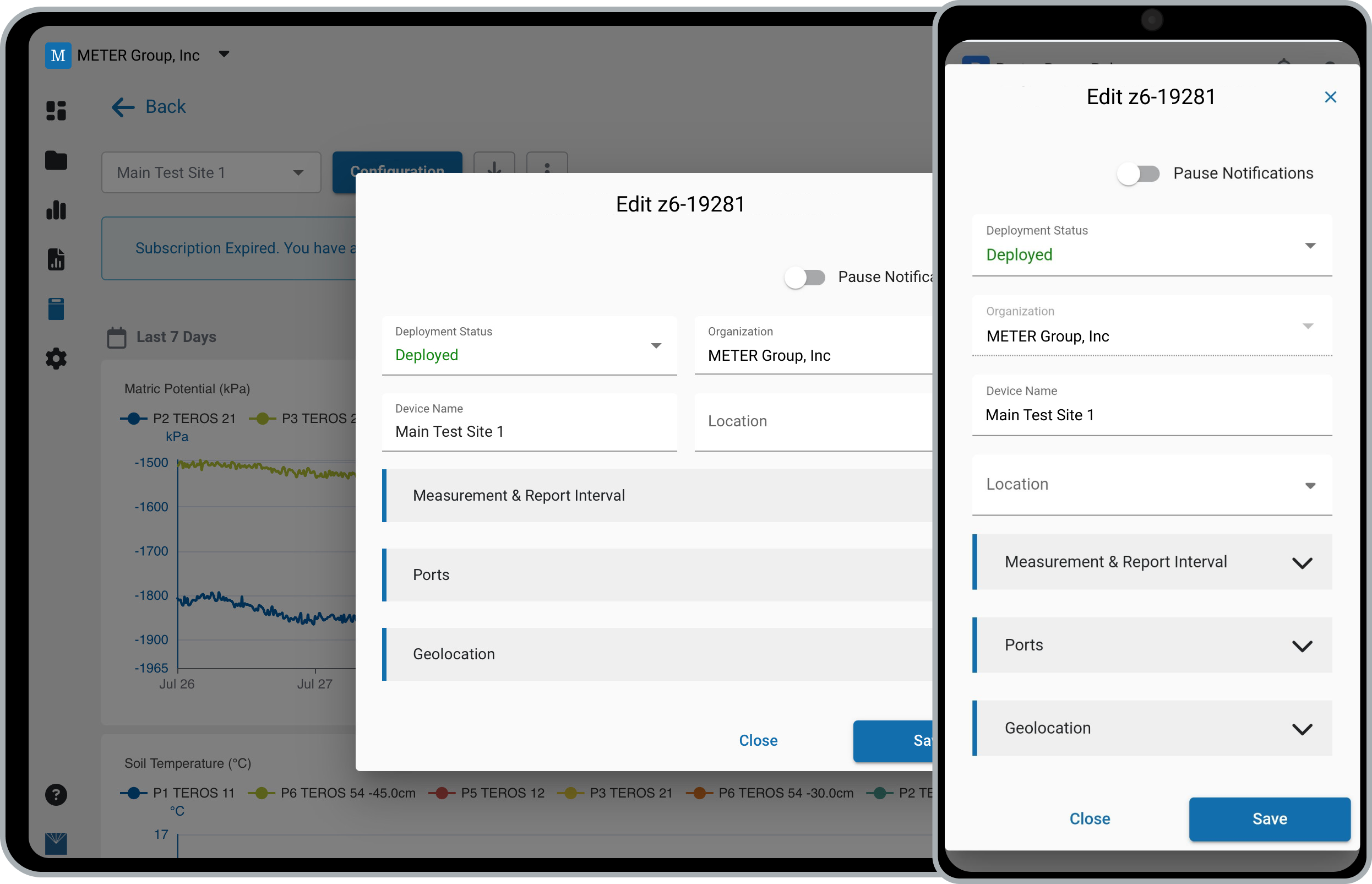
How a device becomes eligible for remote configuration depends on whether it already belongs to an organization in ZENTRA Cloud 1.0. Devices not yet in 1.0 transition automatically when added to 2.0. Devices already in 1.0 must be transitioned manually with the help of METER Support. For full details, see Transitioning from ZENTRA Cloud 1.0 to 2.0.
Request remote configuration
Use the Request Remote Configuration form to request that your devices be enabled for configuration from ZENTRA Cloud 2.0. Once submitted, our team will review your organization and follow up using the contact information you provide.
Open a device's configuration
- In the navigation menu, select Devices.
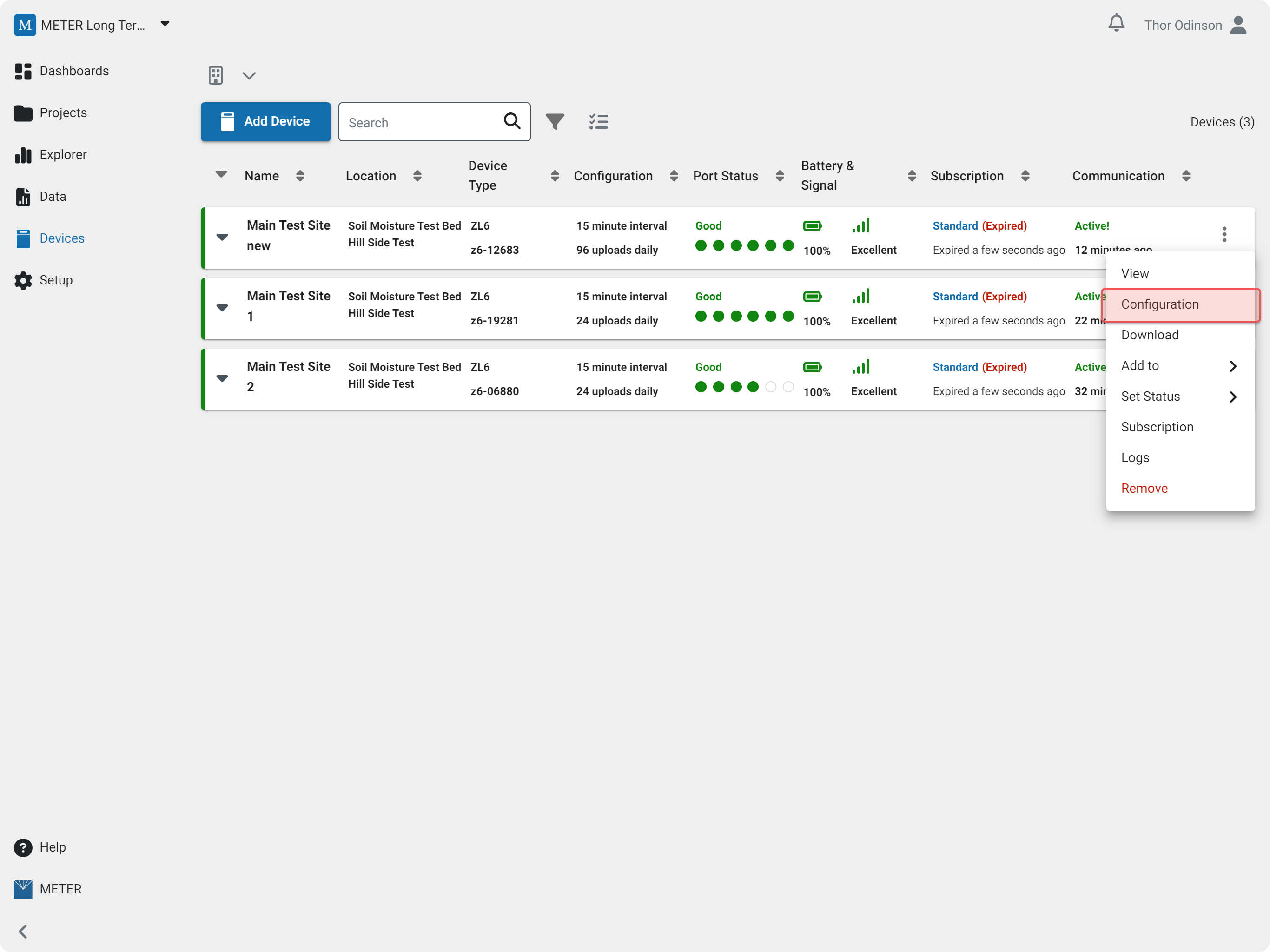
- Click the device name and select Configuration, or click the three dots and select Configuration.
Configuration options are grouped into four categories. The specific options available vary by logger model.
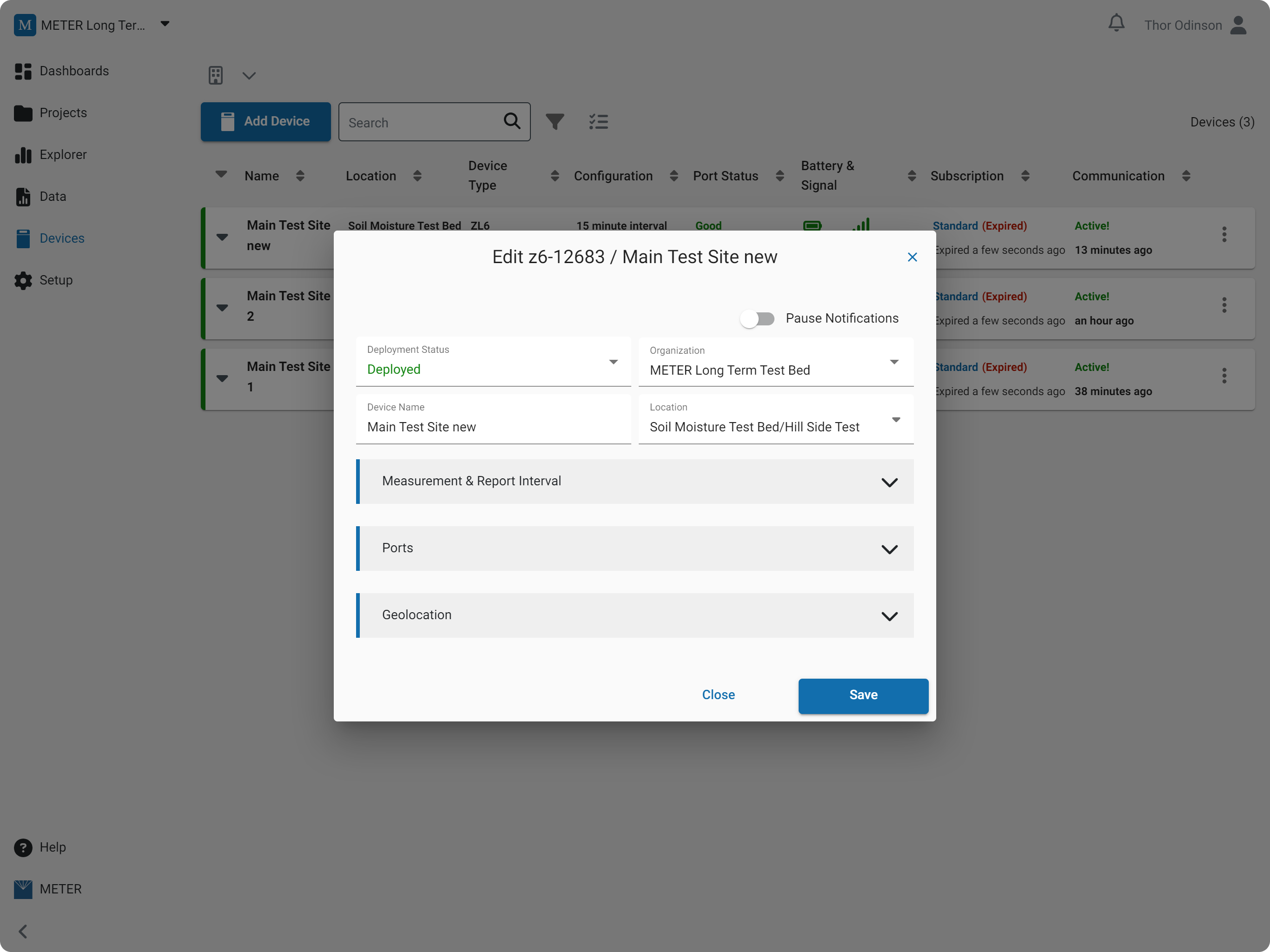
Status & Identity
- Pause Notifications disables notifications for the device.
- Deployment Status sets the overall device status:
- Inventory — the device is not installed.
- Pre-Deploy — the device is being tested before field installation.
- Deployed — the device is installed and collecting data.
- Maintenance — the device is being serviced.
- Repair — the device was sent in for repair.
- Archived — the device is retired, obsolete, or destroyed.
- Organization transfers the device to another organization. You must be an Admin in the current organization and an Admin or Editor in the receiving organization to transfer a device.
- Device Name sets the name of the device.
- Location sets the folder location for the device.
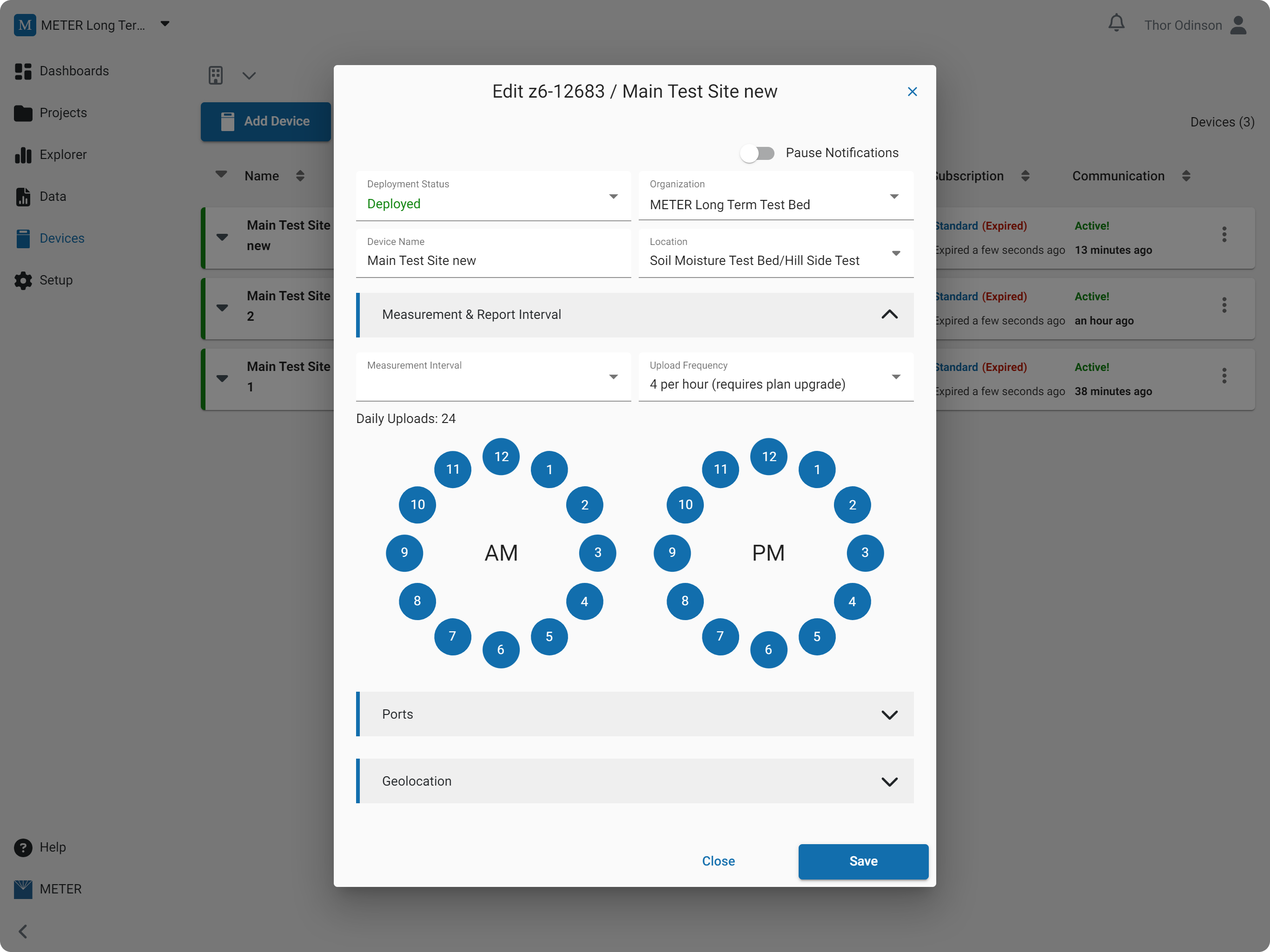
Measurement & Report Interval
- Measurement sets the sensor measurement interval.
- Upload Frequency sets the device upload interval.
- Clock sets the hours the device will upload on the selected interval.
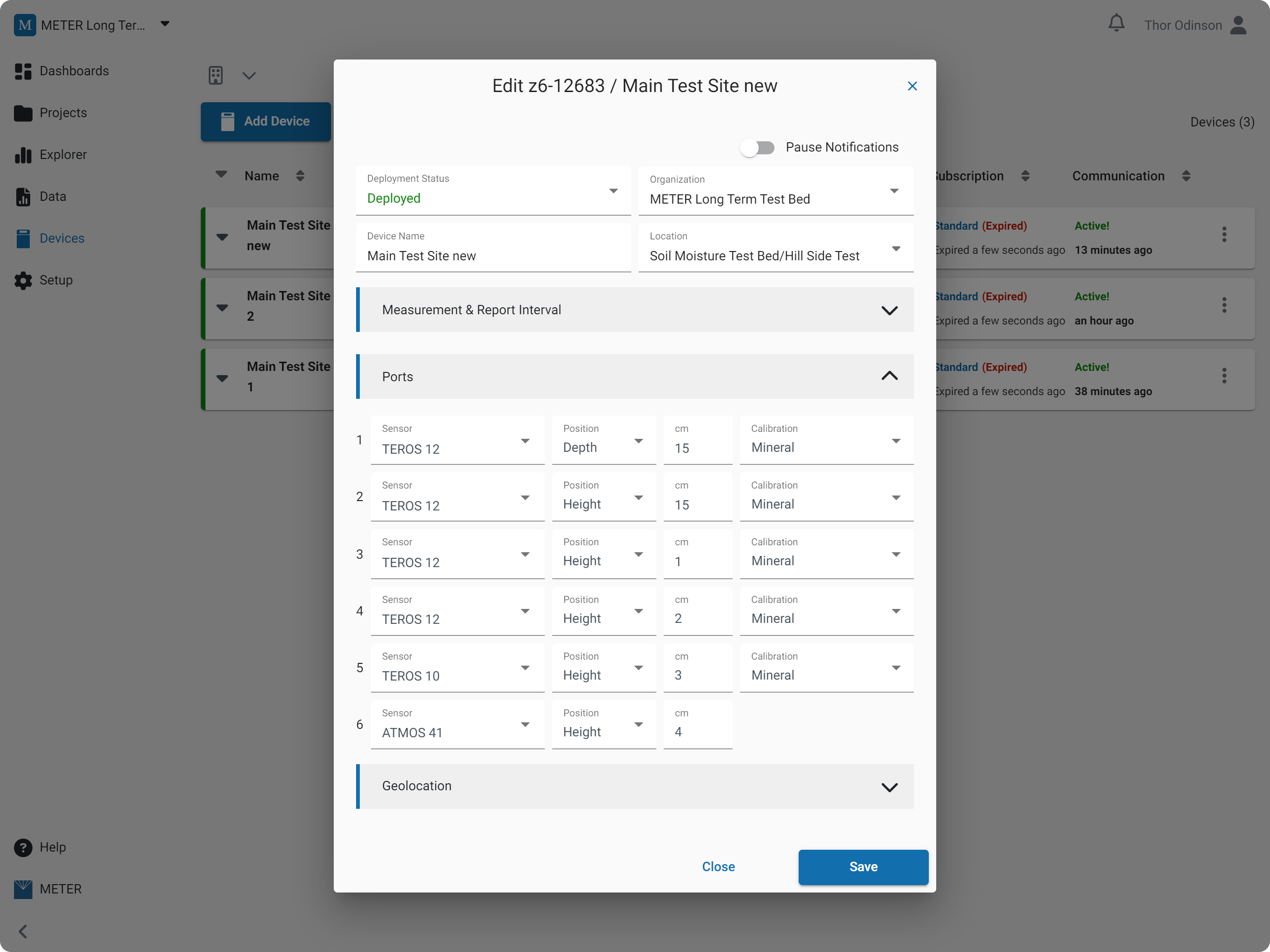
Ports
- Sensor sets the configured sensor.
- Calibration sets the applied soil type.
- Position sets the height or depth of the measurement.
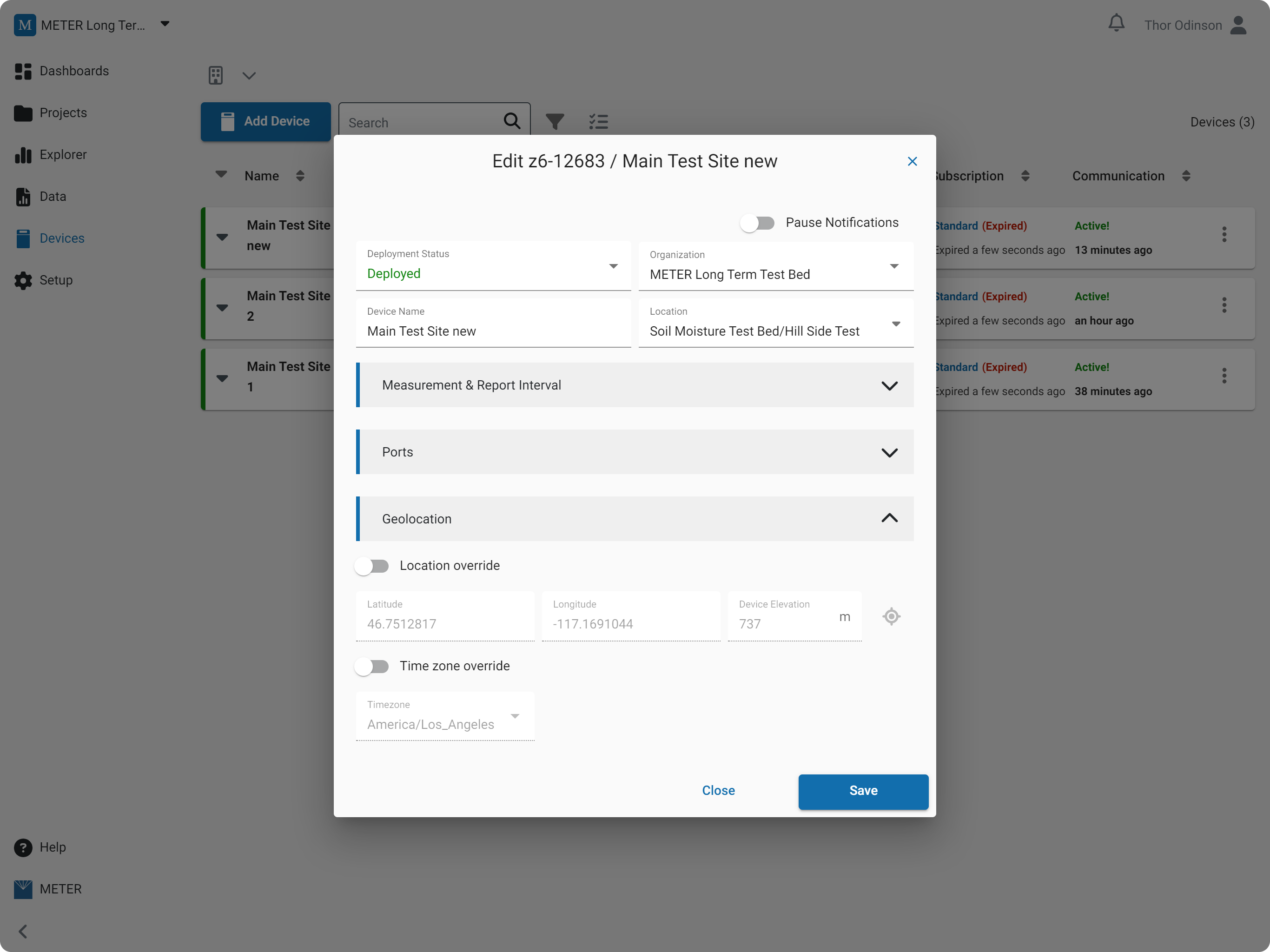
Geolocation
- Location override sets the GPS coordinates to a fixed position.
- Time zone override converts the reported data to the selected time zone.
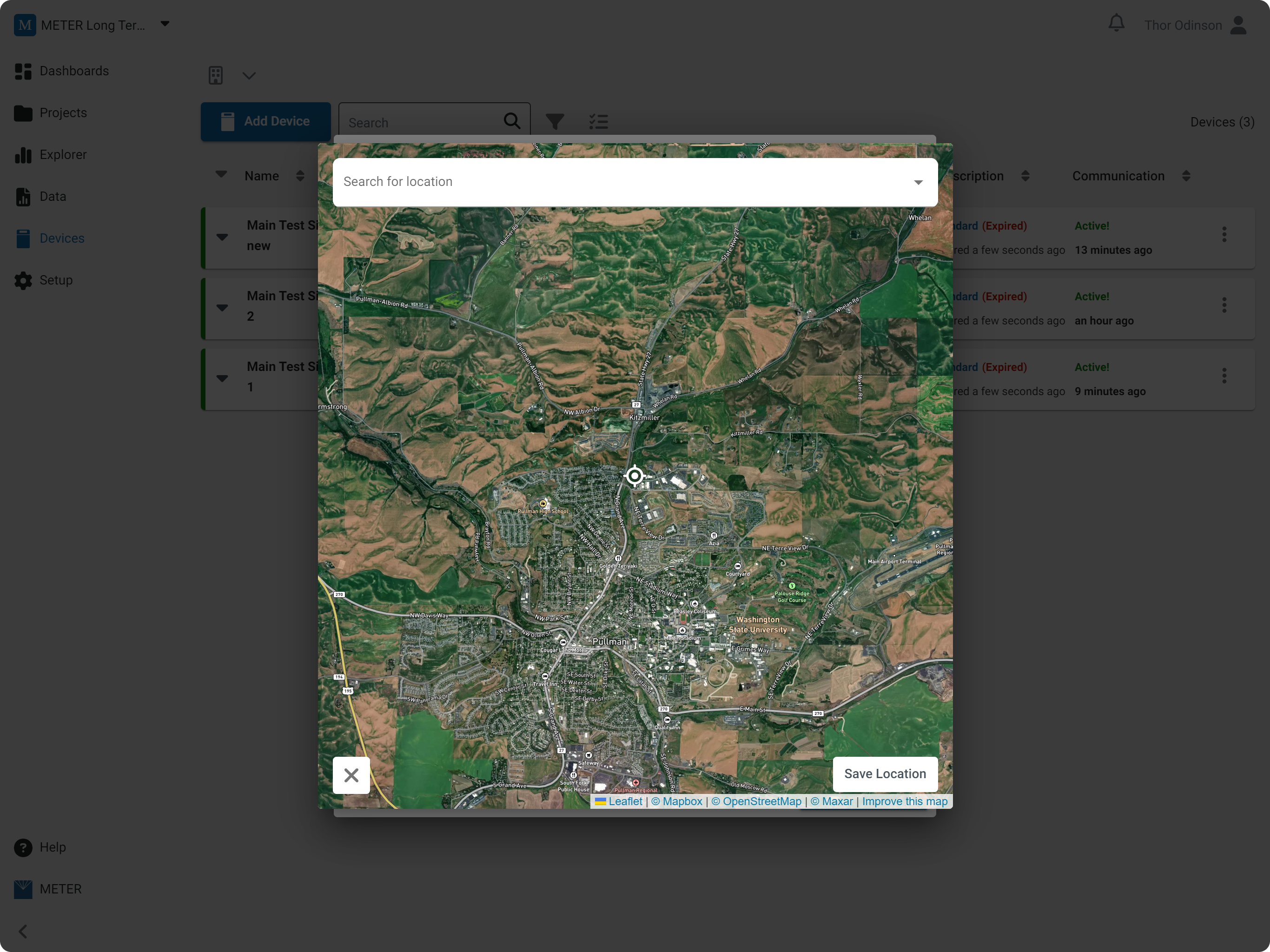
With the override toggled on, you can enter the latitude, longitude, and elevation manually. Click the map icon to update the geolocation visually: drag the map to reposition, then click Save Location.
How-To-Videos
Identity
Logging & Report Interval
Port Configurations
Geolocation
Related
How did we do?
Add a Data Logger
Download Data