Table of Contents
Edit Data
How to name, choose a color, and set the height/depth of your data.
Table of Contents
The Data table lets you customize labels, colors, and other information such as position (height/depth) or soil calibration (mineral, potting). Edit your data in bulk to simplify repetitive steps, and create new types of data, including supported models like Growing Degree Days and Evapotranspiration.
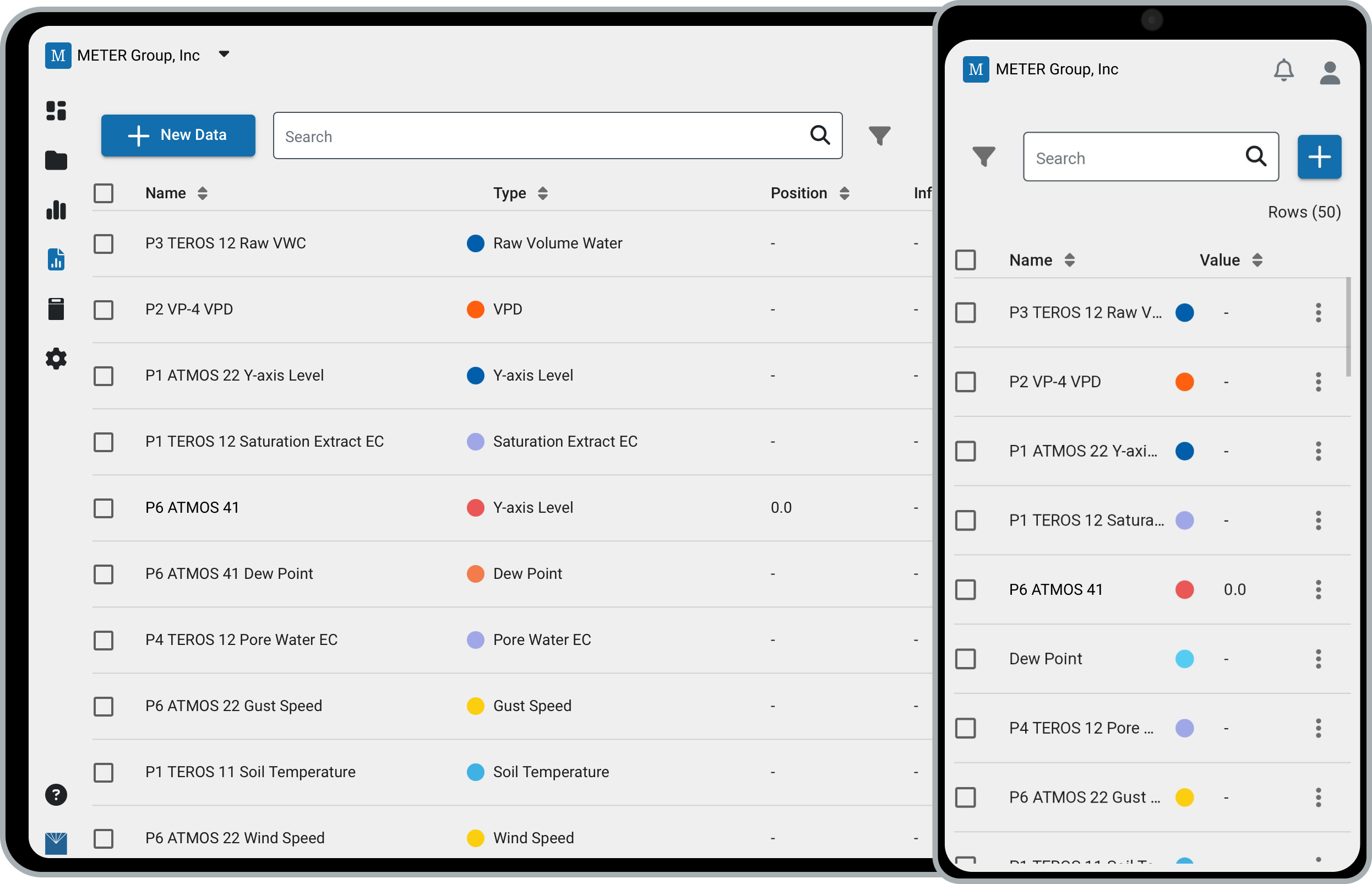
Open the Data table
In the navigation menu, click Data.
Edit in bulk
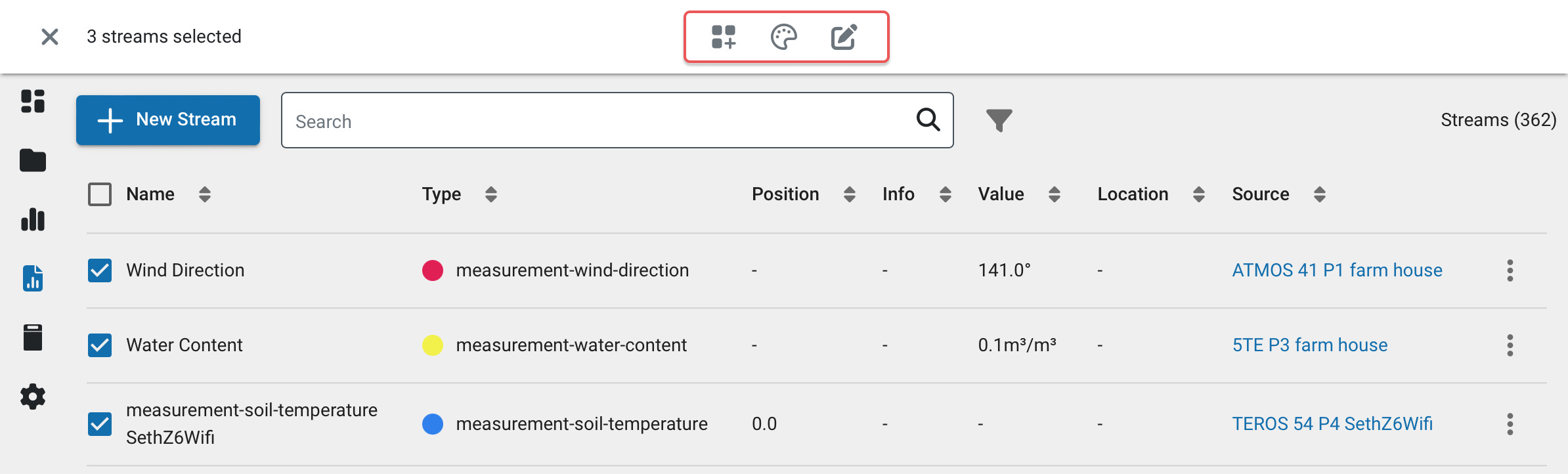
Eliminate repetitive steps by managing data in bulk. On the Data page, select the checkboxes and use the Toolbar to:
- Add data to a chart or workspace
- Update the color
- Edit the name
- Adjust the height/depth values
- Update the soil calibration
Edit an individual row
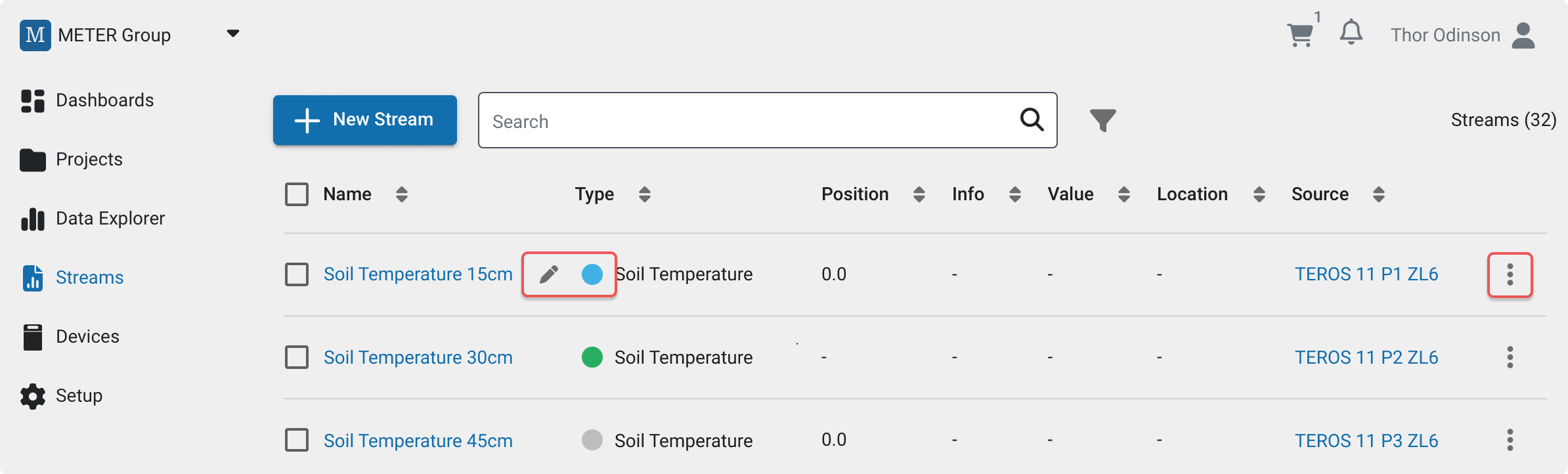
To change a single row of data, click the Pencil to edit its name, color, and position. You can also change the color using the in-row color swatch. Additional options are available from the Ellipsis menu.
How-To-Video
How did we do?
Soil-Specific Calibrations