Table of Contents
Alerts
Alerts help you monitor your devices and data. You can create alerts to track environmental measurements and device battery, then set up Notification Groups to receive email notifications when parameters are exceeded.
Table of Contents
Alerts help you monitor your devices and data. Create alerts to track environmental measurements, device battery, and targets, then set up Notification Groups to receive email notifications when your parameters are exceeded.
How email notifications work
Email notifications are sent only when an alert changes state:
- Triggered — an email is sent when the alert condition is first met.
- Resolved — a second email is sent when the alert condition clears.
This applies to all alerts, including low battery alerts. You'll only receive additional emails if the alert repeatedly transitions between triggered and resolved states (for example, if conditions fluctuate around the threshold).
Alerts do not send repeated reminder emails while they remain active.
Access alerts
From the navigation bar, select Alerts. All alerts you've configured display on this page, where you can edit existing alerts or create new ones. A default alert rule for Devices is created automatically, which you can customize or subscribe to as needed.
You can also create and manage target alerts directly from the Explorer — see Configure a target alert below.
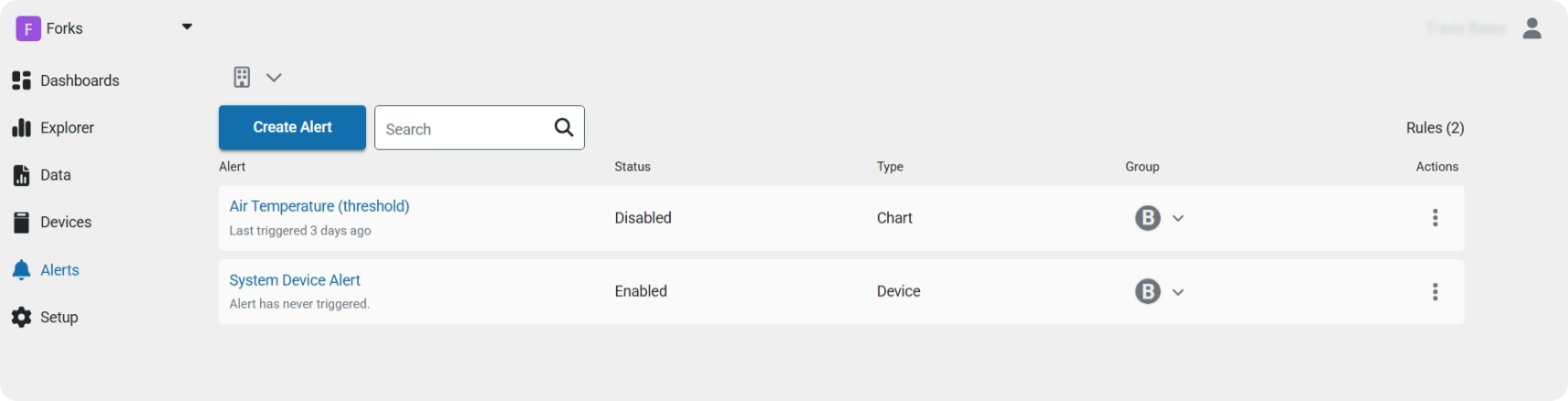
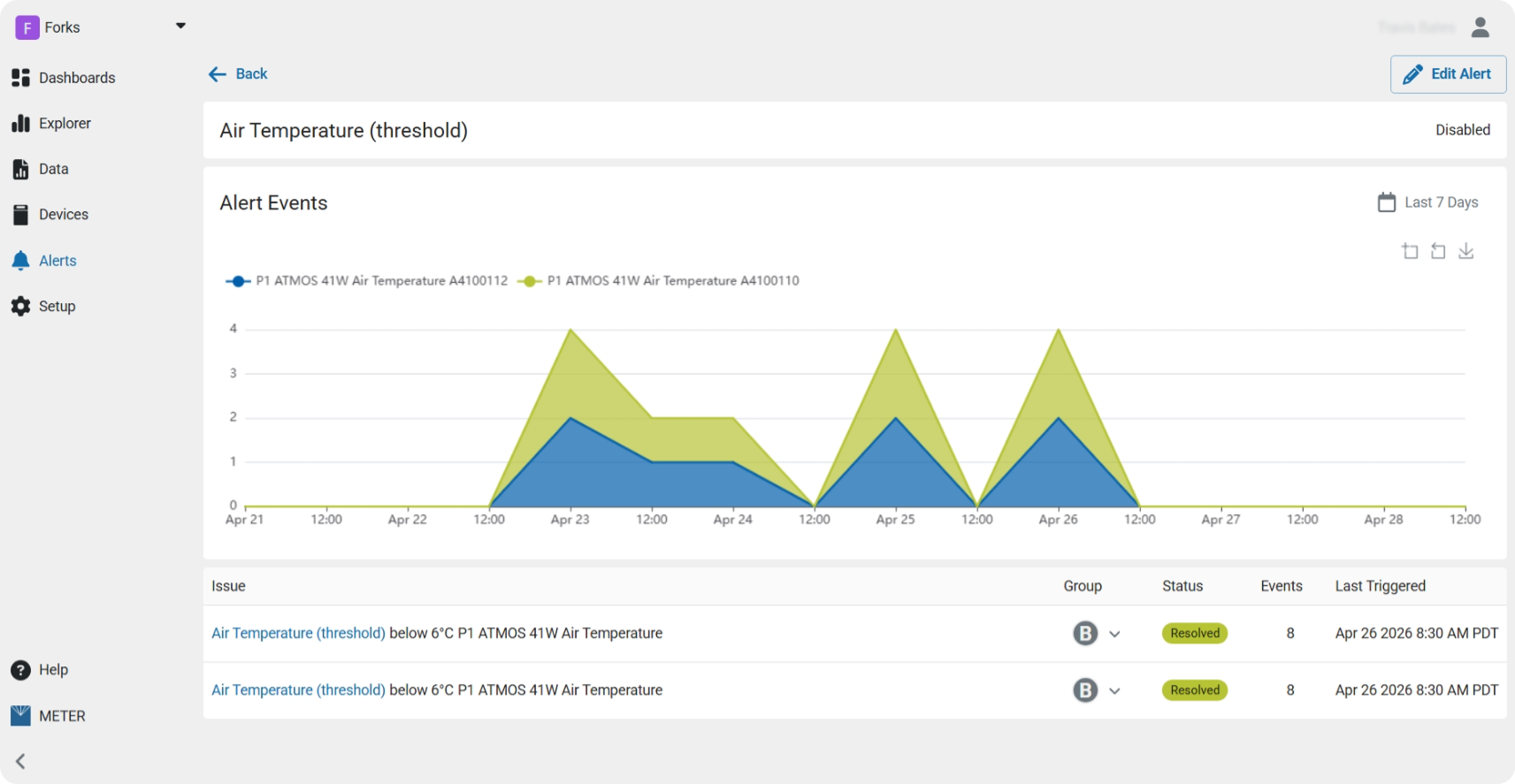
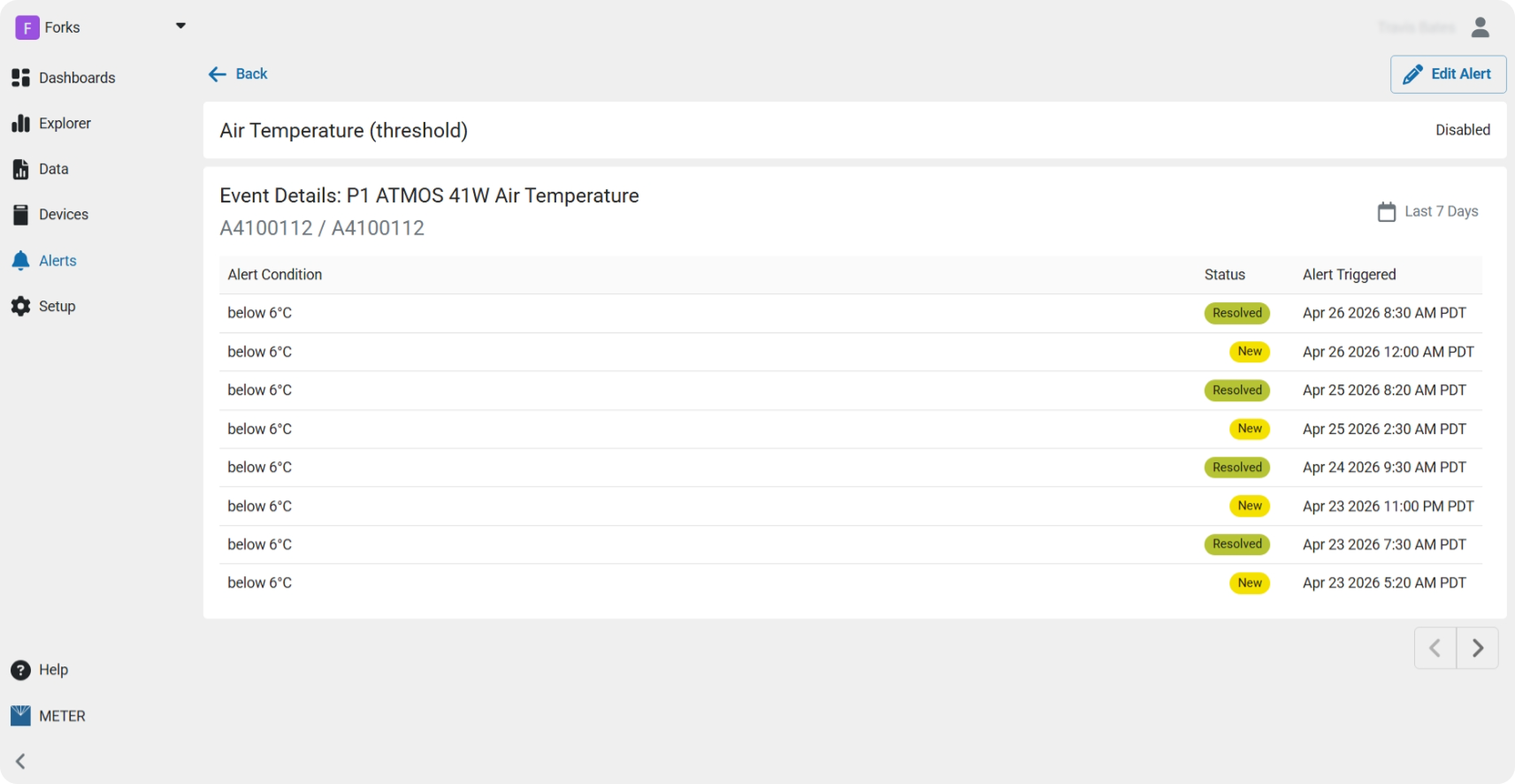
Create a device alert
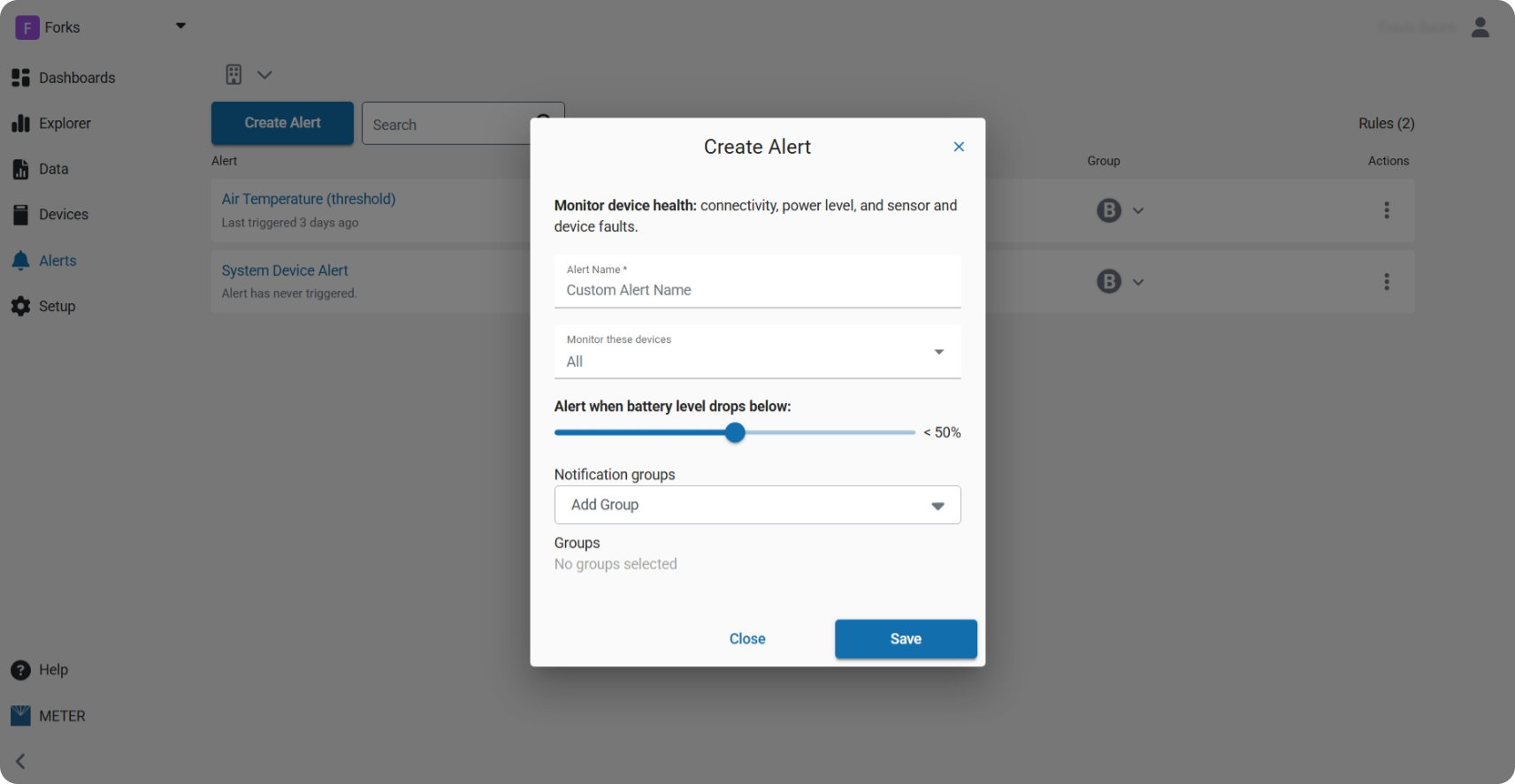
Follow these steps to set up monitoring for your devices:
- Click Create Alert.
- Enter a descriptive name.
- Select the devices to monitor.
- Adjust the battery threshold.
- Select an existing Notification Group, or choose New Group to create one.
- Click Save.
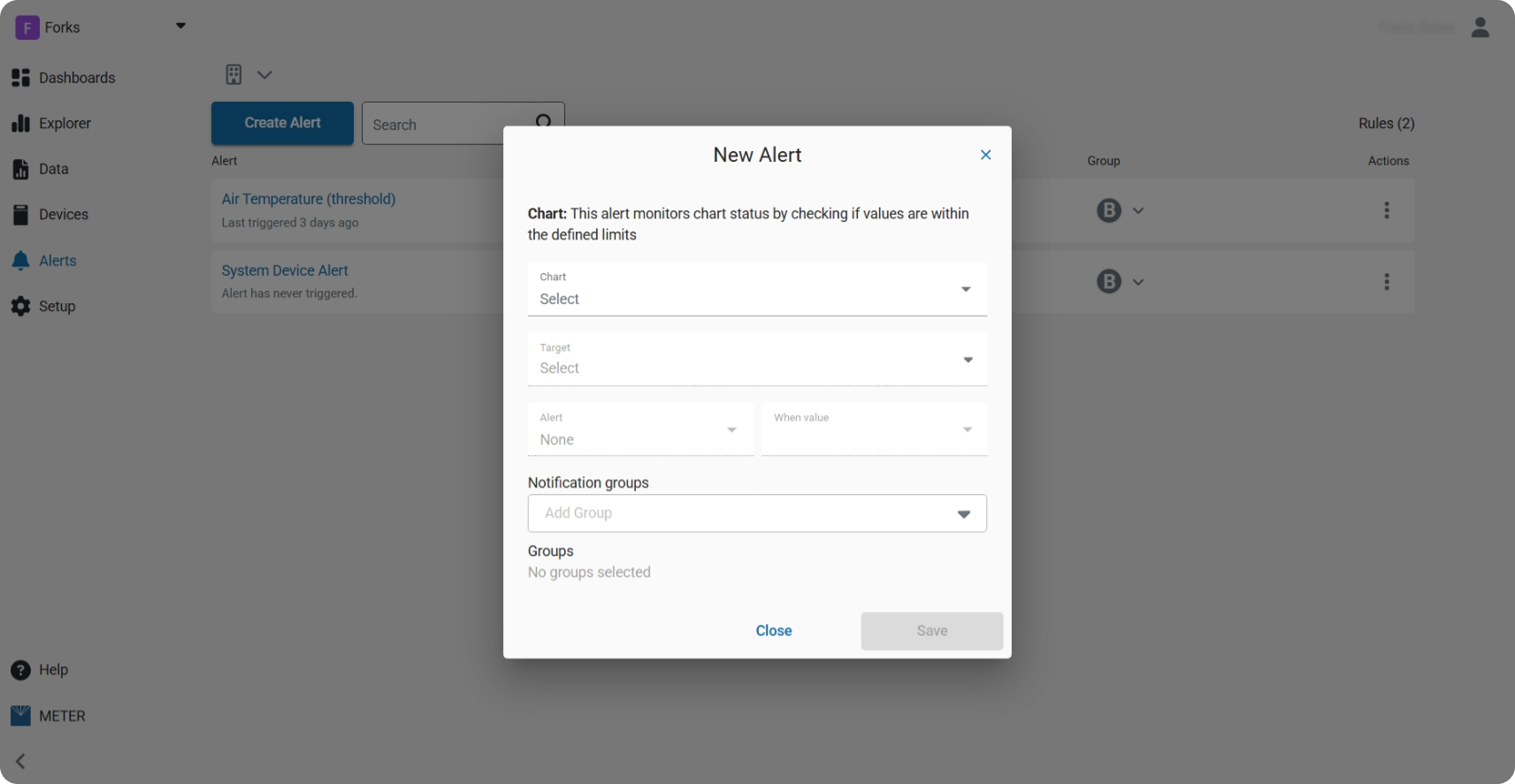
Create a chart alert
- Click Create Alert.
- Select the chart(s).
- Select or create a new target.
- Select the datastreams to alert on.
- Select an existing Notification Group, or choose New Group.
- Click Save.
Configure a target alert
You can also configure alerts directly on a target from the Explorer. From the Explorer, select a chart that already has a target, or add a target to a new or existing chart.
- Click the three-dot menu on the target and select Alert.
- Choose which measurements should trigger the alert.
- Define the alert conditions:
- Target Ranges — alert when the value is above, below, or outside the target.
- Thresholds — alert when values are above or below the threshold.
- (Optional) Add a custom message to include with your alert notification.
- Choose an existing Notification Group, or select Create Group to set up a new one.
- Click Save.
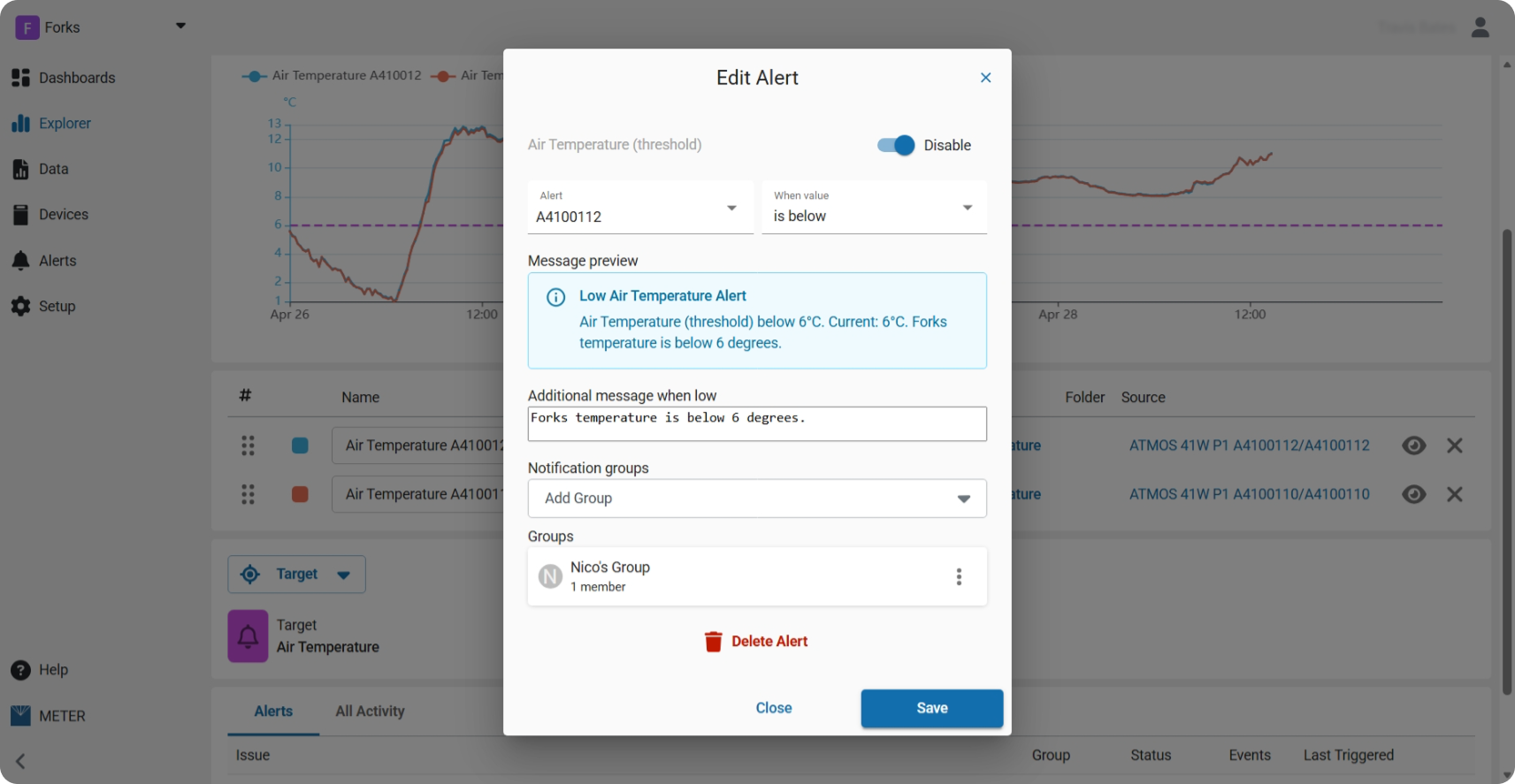
Disable an alert
To temporarily disable an alert without deleting it:
- Click the three-dot menu on the target and select Alert.
- Toggle the Disable switch on.
- Click Save.
Create a Notification Group
Notification Groups let you organize who receives alerts and how they're delivered:
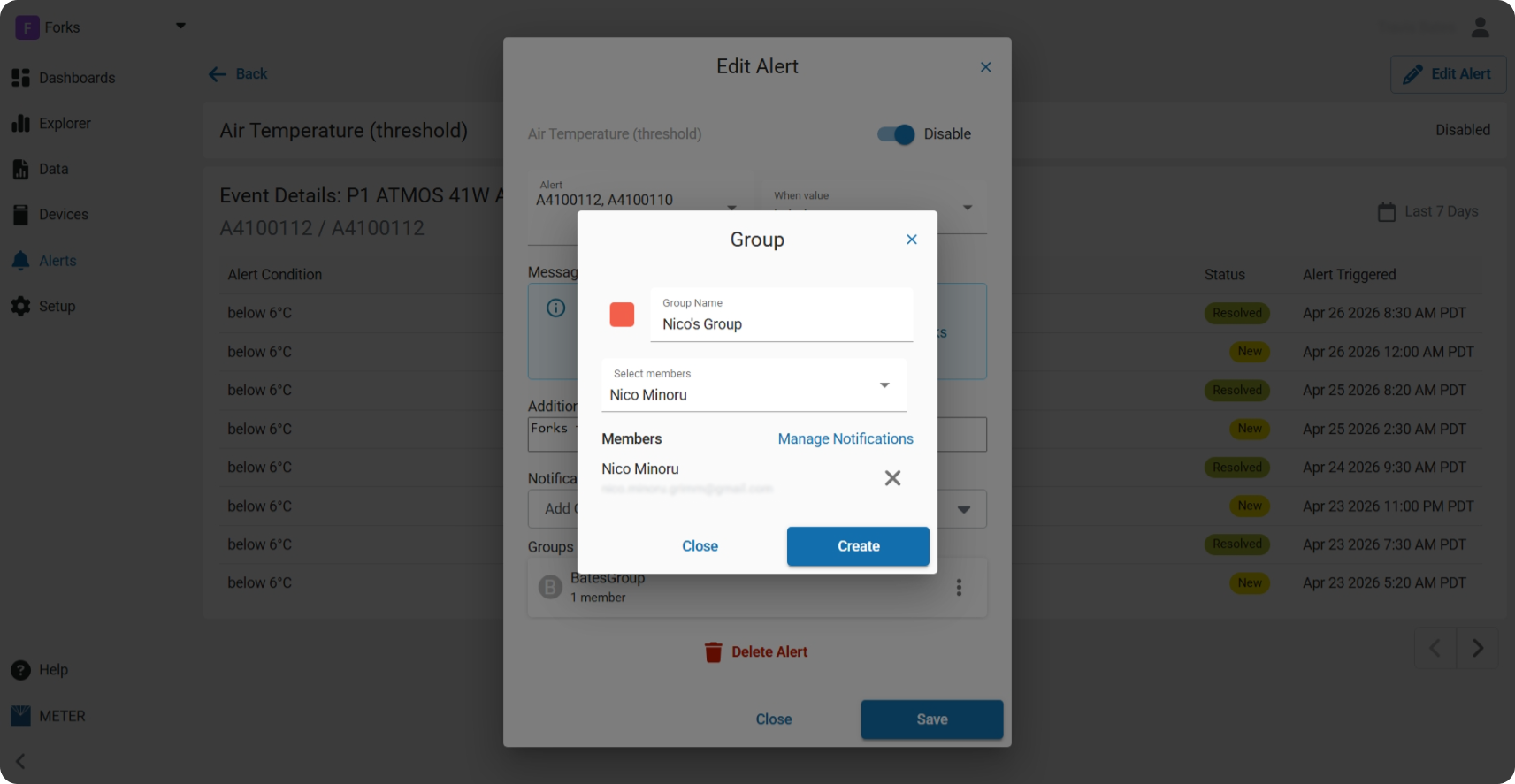
- Click Create Group.
- Enter a clear name for the group.
- Select the members to add.
- Click Manage Notifications to choose how members receive alerts (email only for now; email is selected by default).
- Click Create to save your notification group.
Manage a Notification Group
- Once a group is assigned to an alert, click the group name, or select the three-dot menu and choose Manage.
- Add or remove members from the group.
- Click Manage Notifications to update the delivery method (email only for now).
- To unassign a group from an alert, click the three-dot menu and select Remove.
How did we do?