Table of Contents
Create Account
How to log in and create your first organization in ZENTRA Cloud.
Table of Contents
Overview
Learn how to sign up for ZENTRA Cloud 2.0, verify your account, and create your first organization by adding your first device.
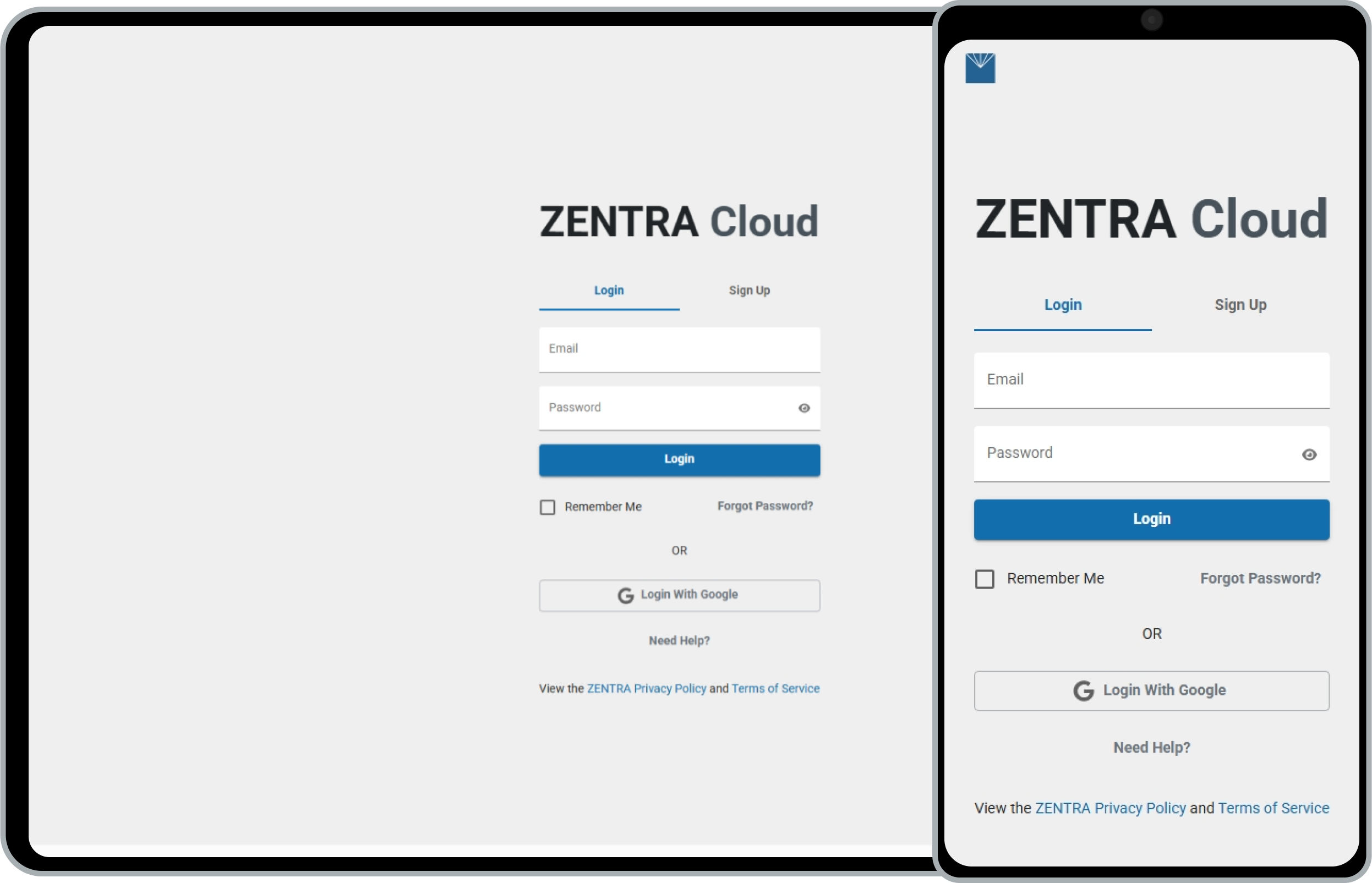
Step 1 - Sign Up
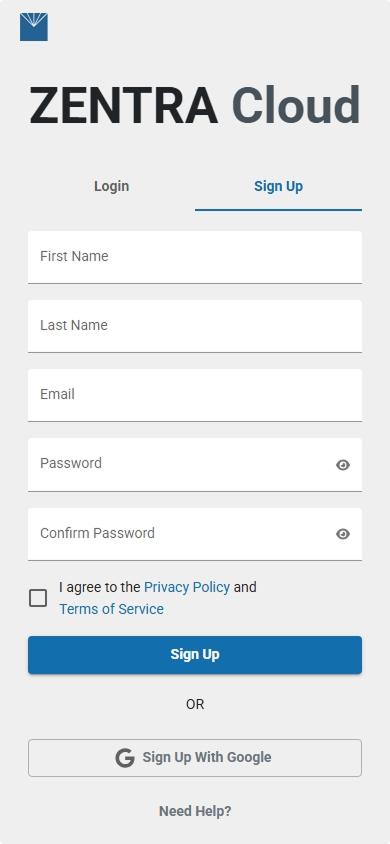
- Open your browser and go to app.zentracloud.io.
- Select the Sign Up tab.
- Enter your name, email address, and a password.
- Agree to the Privacy Policy and Terms of Service.
- Click Sign Up.
A verification email will be sent to the address you provided from alerts@zentracloud.io. If you don't see it within a few minutes, check your spam or junk folder.
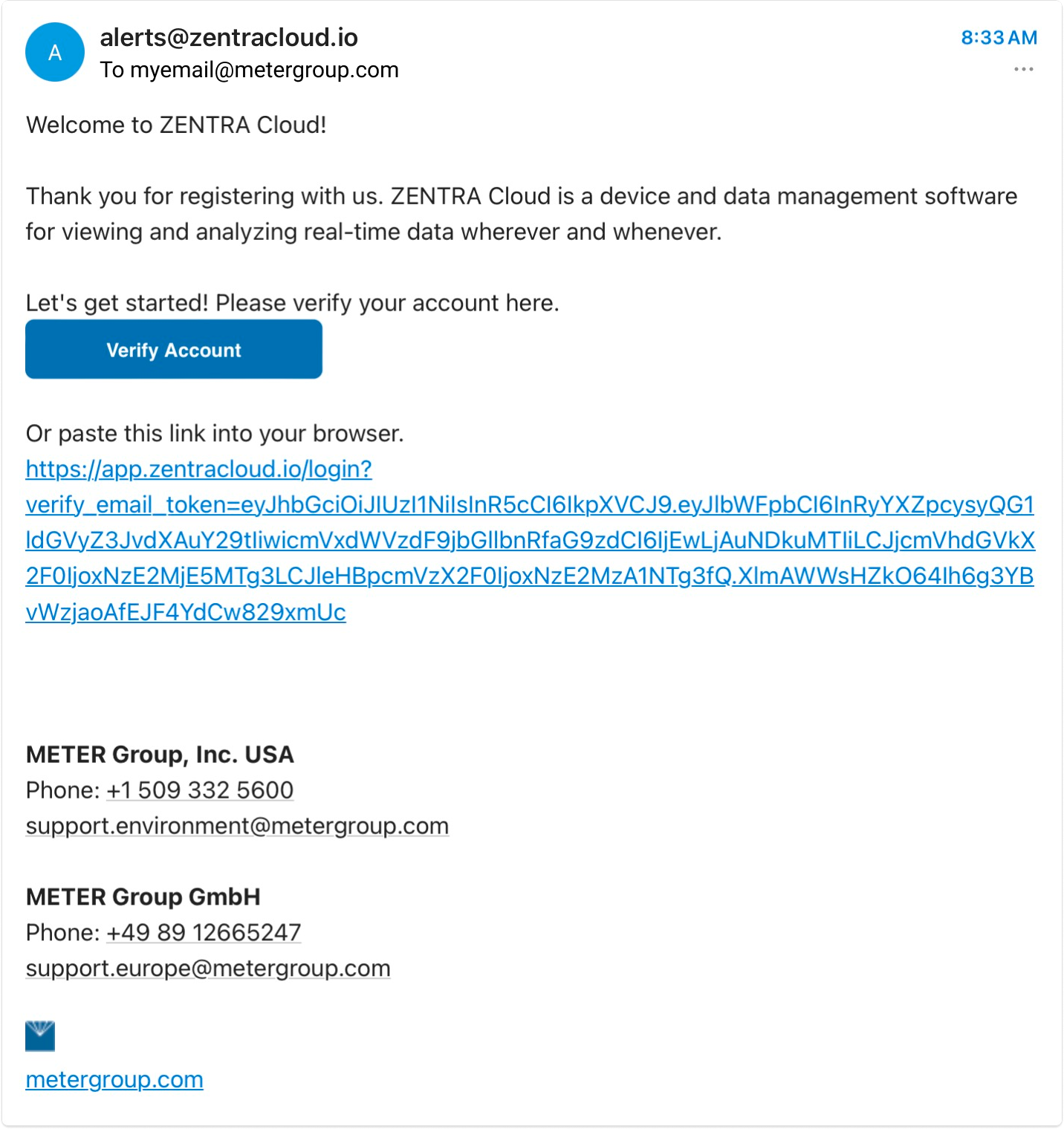
Step 2 - Verify Your Account
- Open the verification email and click Verify Account.
- You will be redirected back to ZENTRA Cloud.
- Enter your email and password to log in.
- Select Remember Me if you'd like the browser to save your credentials.
- Click Login.
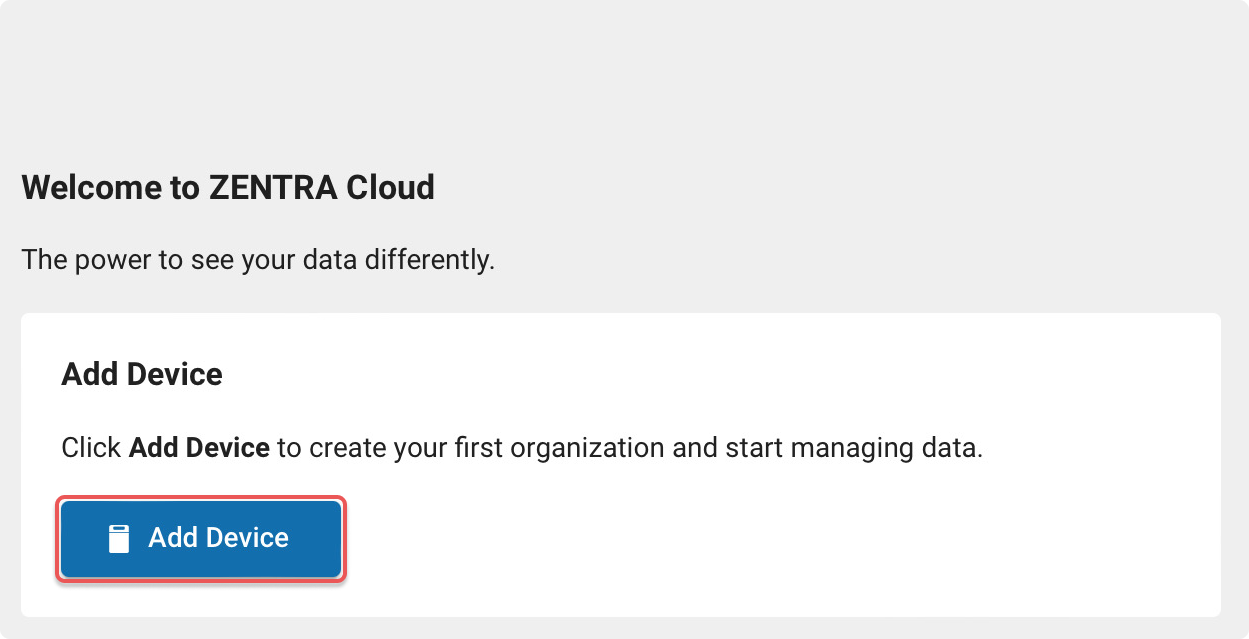
Step 3 - Create Your First Organization
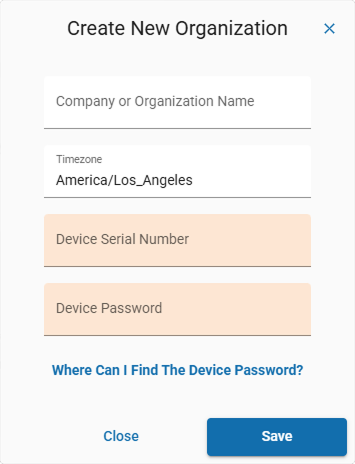
If this is your first time and you are not already a member of an organization, you can create a new organization if you have a device serial number by clicking Add Device.
New Organization Dialog
Fill in the following fields:
Field | Description |
Company or Organization Name | The name for your organization (e.g., your company, university, or department). |
Timezone | Select the timezone for your organization. Defaults to America/Los_Angeles. |
Device Serial Number | The serial number printed on your METER device. |
Device Password | Shown only for devices that require a password (see below). |
About the Device Password Field
The Device Password field appears automatically based on the serial number you enter:
- ZL6 data loggers (serial starts with
z6). The password field will appear. Enter the device password printed on the orange card in your ZL6. - ATMOS 41W data loggers (serial starts with
A4). The password field will appear. Enter the device password printed on the orange card of your ATMOS 41W. - SOLYX Go has no password field. The SOLYX Go handheld device does not have a password.
Step 4 - Save Your Organization
Once all required fields are filled in, click Save to finish creating your organization and add your first device.
Videos
Sign up
Create Organization
Related
How did we do?
Welcome to ZENTRA Cloud 2.0
Install the ZENTRA Cloud App (PWA)