Pull ZENTRA Cloud data into Google Sheets™
Install the ZENTRA Cloud for Google Sheets™ add-on, paste your v5 API token, and pull device readings into a spreadsheet, one tab per device, with incremental and scheduled refreshes.
Install the ZENTRA Cloud for Google Sheets™ add-on to bring your device readings into a spreadsheet, one tab per device, and keep them up to date.
ZENTRA Cloud for Google Sheets™ is a Google Workspace™ Marketplace add-on from METER Group. You install it once, then use it in any spreadsheet from Extensions → ZENTRA Cloud for Google Sheets™. Paste your ZENTRA Cloud API token, choose your devices and dates, and the readings arrive in the sheet. Updates to the add-on reach every sheet automatically.
What it does:
- Creates one tab per device, with a column for every measurement that device reports.
- Refreshes incrementally, so a later pull only fetches readings you do not already have.
- Handles paging and ZENTRA Cloud's rate limits for you.
- Can refresh on a schedule, without the sheet being open.
- Records every run on a Status tab.
The add-on reads and writes only the spreadsheet it is opened in, sends requests only to the ZENTRA Cloud API, and keeps your API token with your Google account, not in the sheet. See the ZENTRA Cloud privacy policy for how it handles Google user data.
If you prefer to work in code, or you need to move several years of history at once, the Python SDK zentracloud-py and the R client zentraR are better suited to that job.
1. Before you start
You need:
- A ZENTRA Cloud account with at least one device.
- A Google account.
- A ZENTRA Cloud v5 API token (see 3. Get your API token).
Use a browser window that is signed in to only one Google account. With several accounts signed in, Google can run the add-on as the wrong one (see 13. Troubleshooting). A private window or a separate browser profile avoids this.
2. Install the add-on
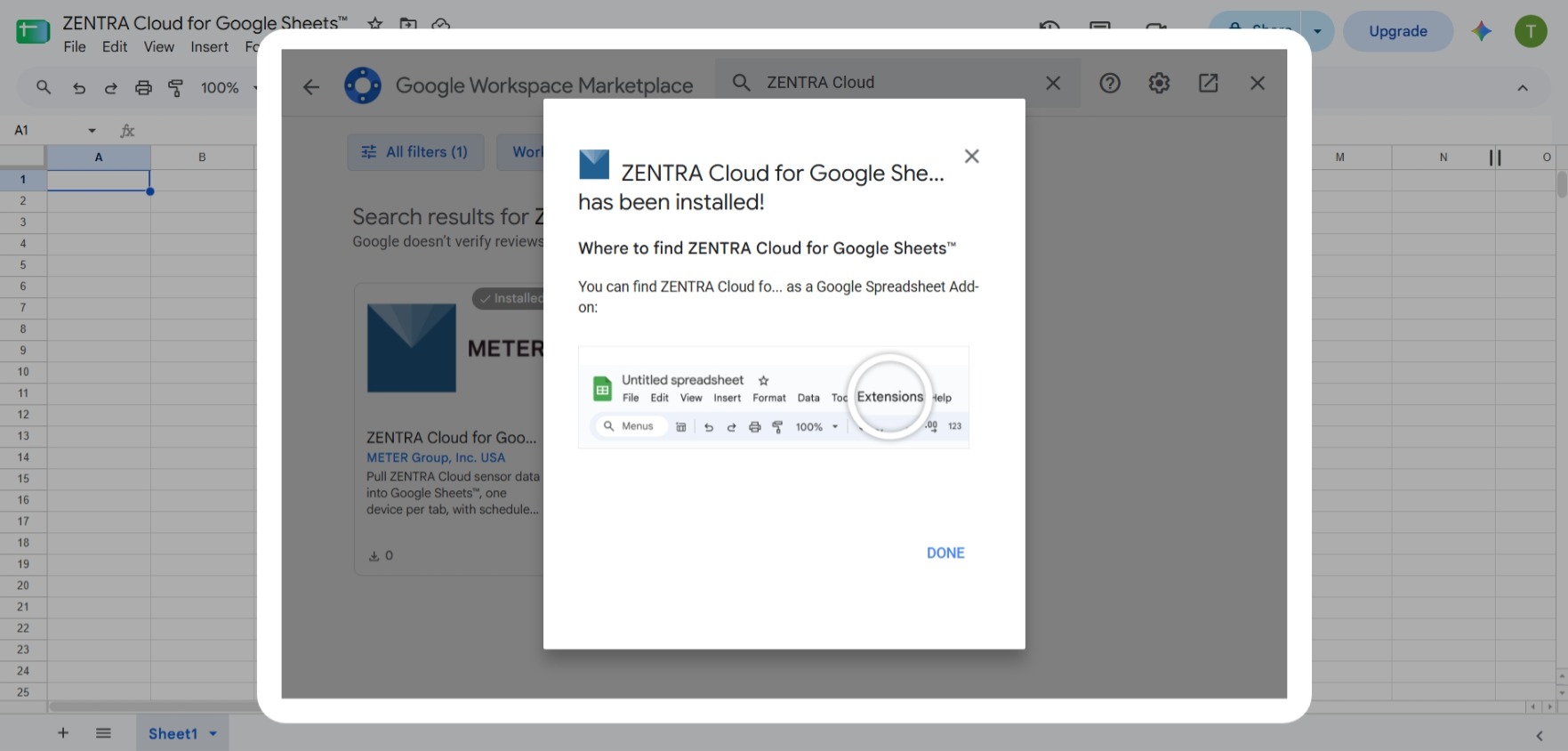
- Open any spreadsheet in Google Sheets™.
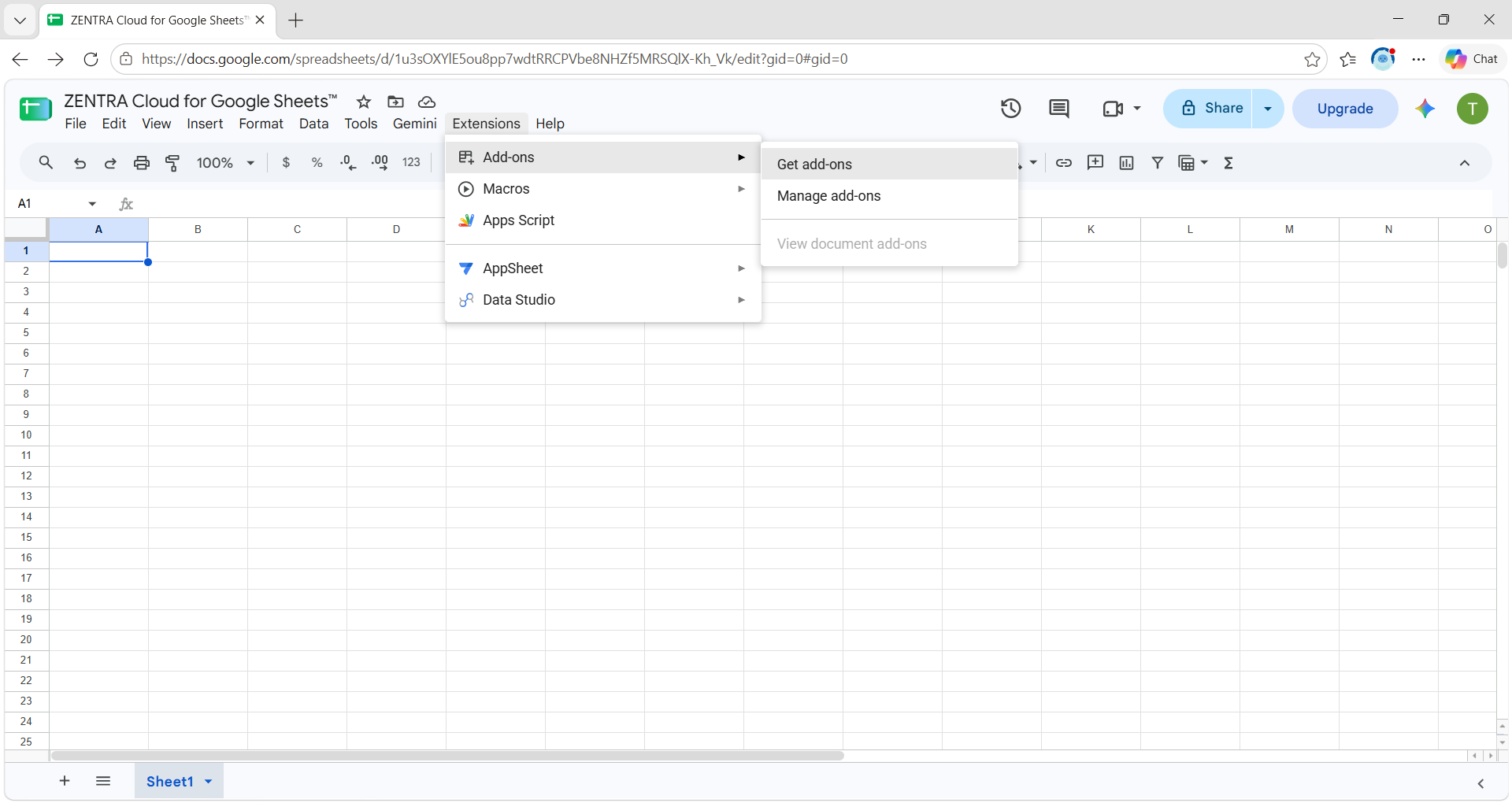
- Select Extensions → Add-ons → Get add-ons.
- Search for ZENTRA Cloud for Google Sheets™ and select it.
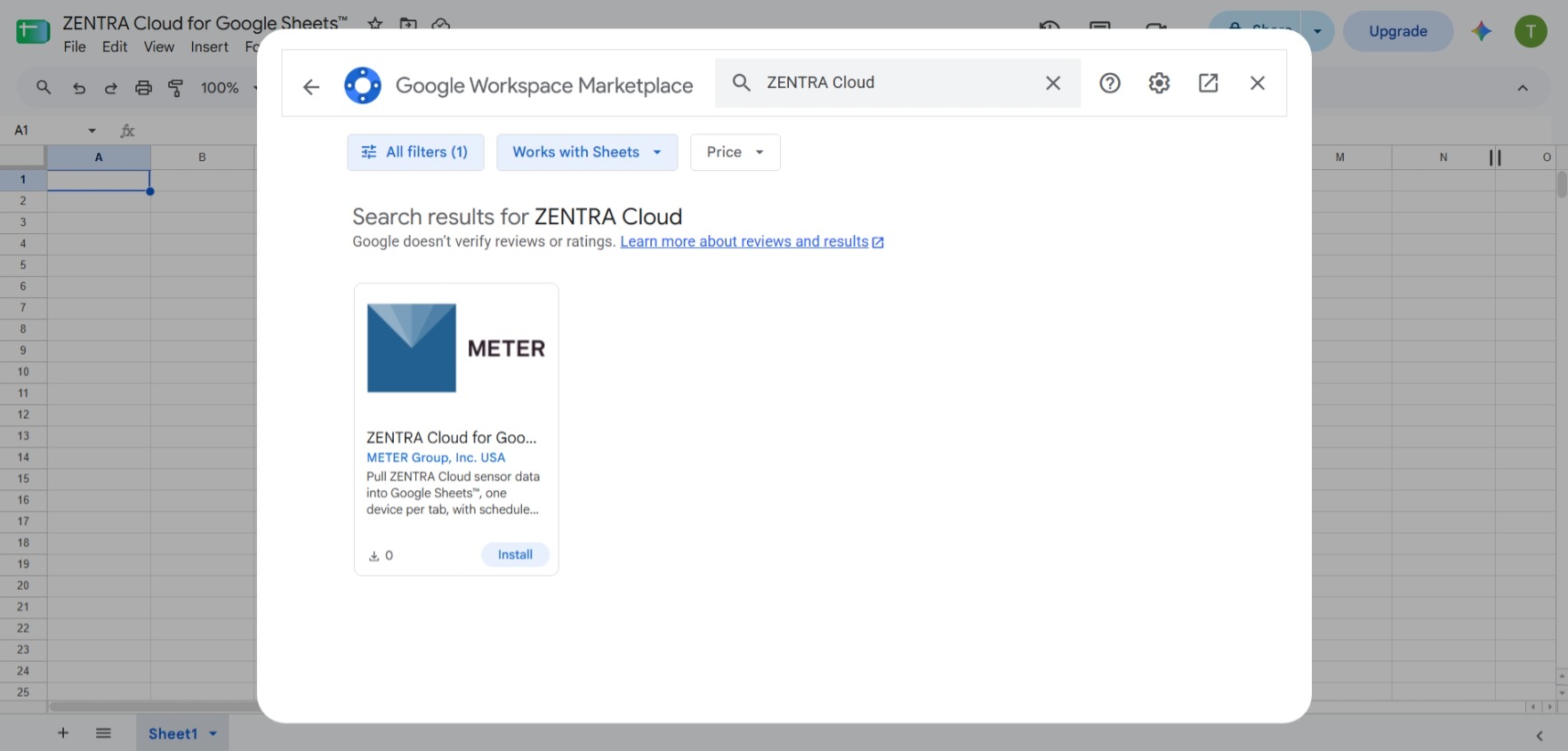
- Select Install, choose your Google account, and review the permissions.
- Select Continue or Allow.
You can also install it from the add-on's page on the Google Workspace™ Marketplace.
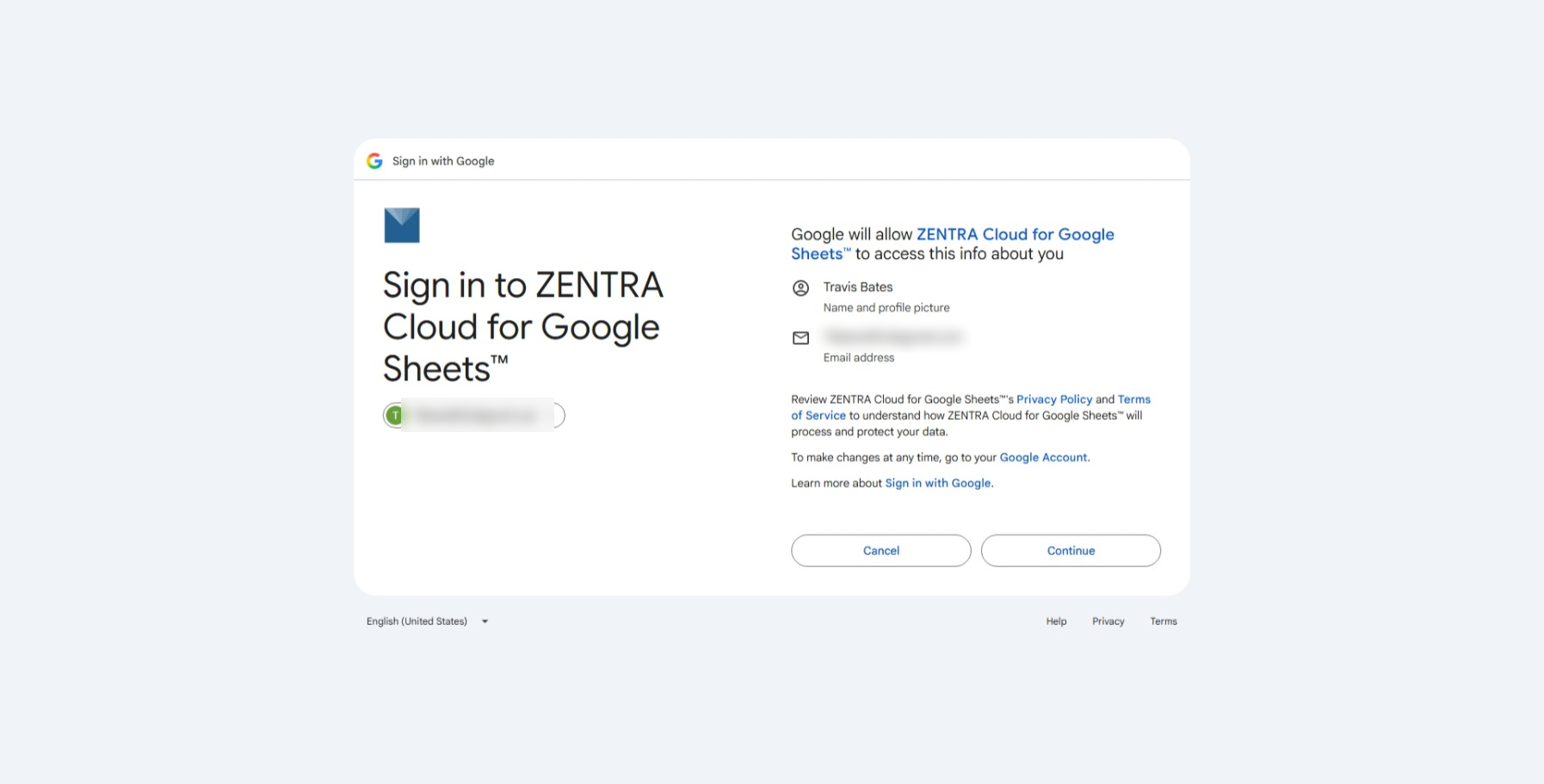
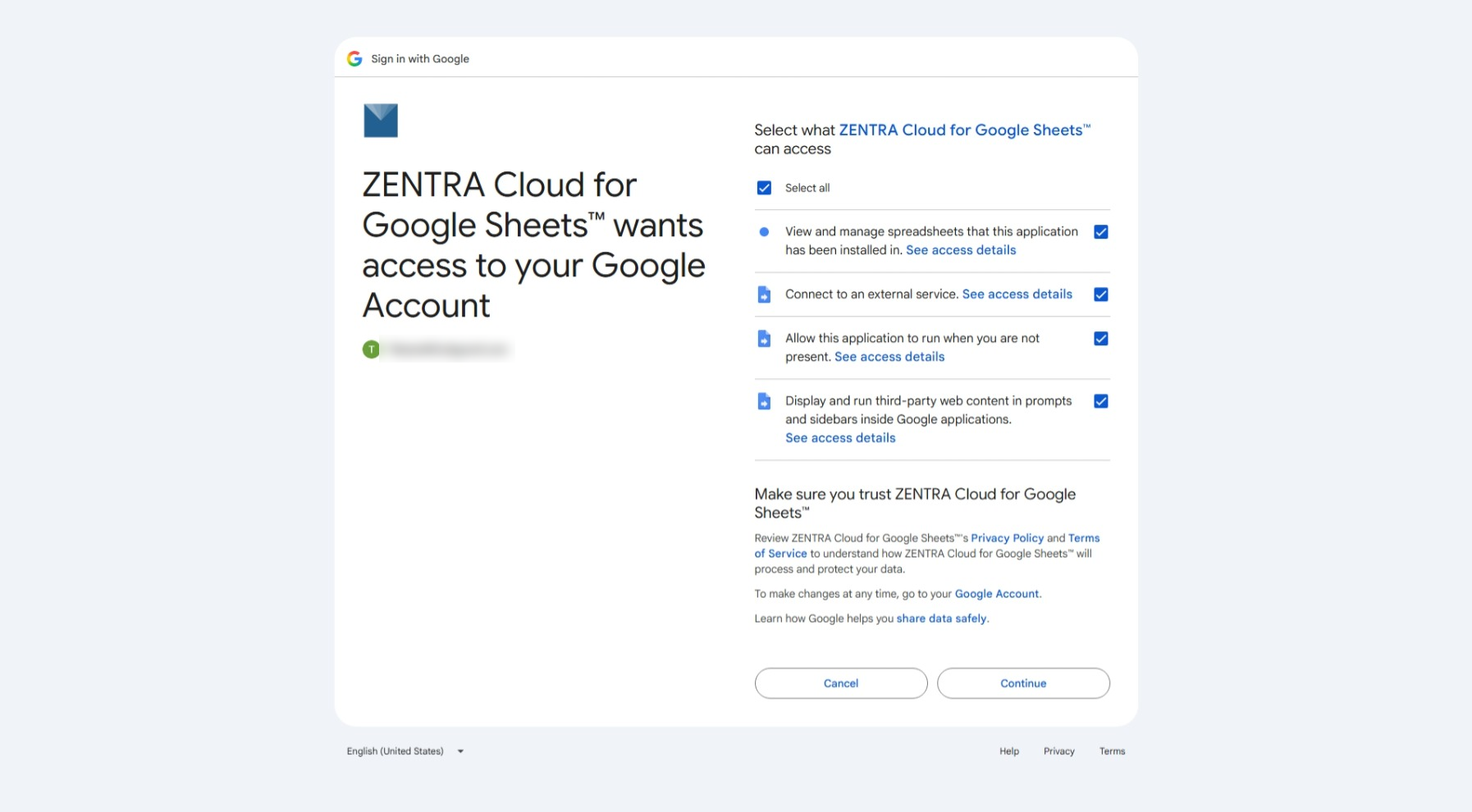
Google asks for these permissions:
Permission | Why the add-on needs it |
View and manage spreadsheets that this application has been installed in | Write readings into the sheet you are using, and only that sheet |
Connect to an external service | Call the ZENTRA Cloud API |
Allow this application to run when you are not present | Finish a long pull after you close the sidebar, and run scheduled refresh |
Display and run third-party web content in prompts and sidebars inside Google applications | Show the sidebar you work in |
See your primary Google Account email address | Name the account that ran a refresh on the Status tab |
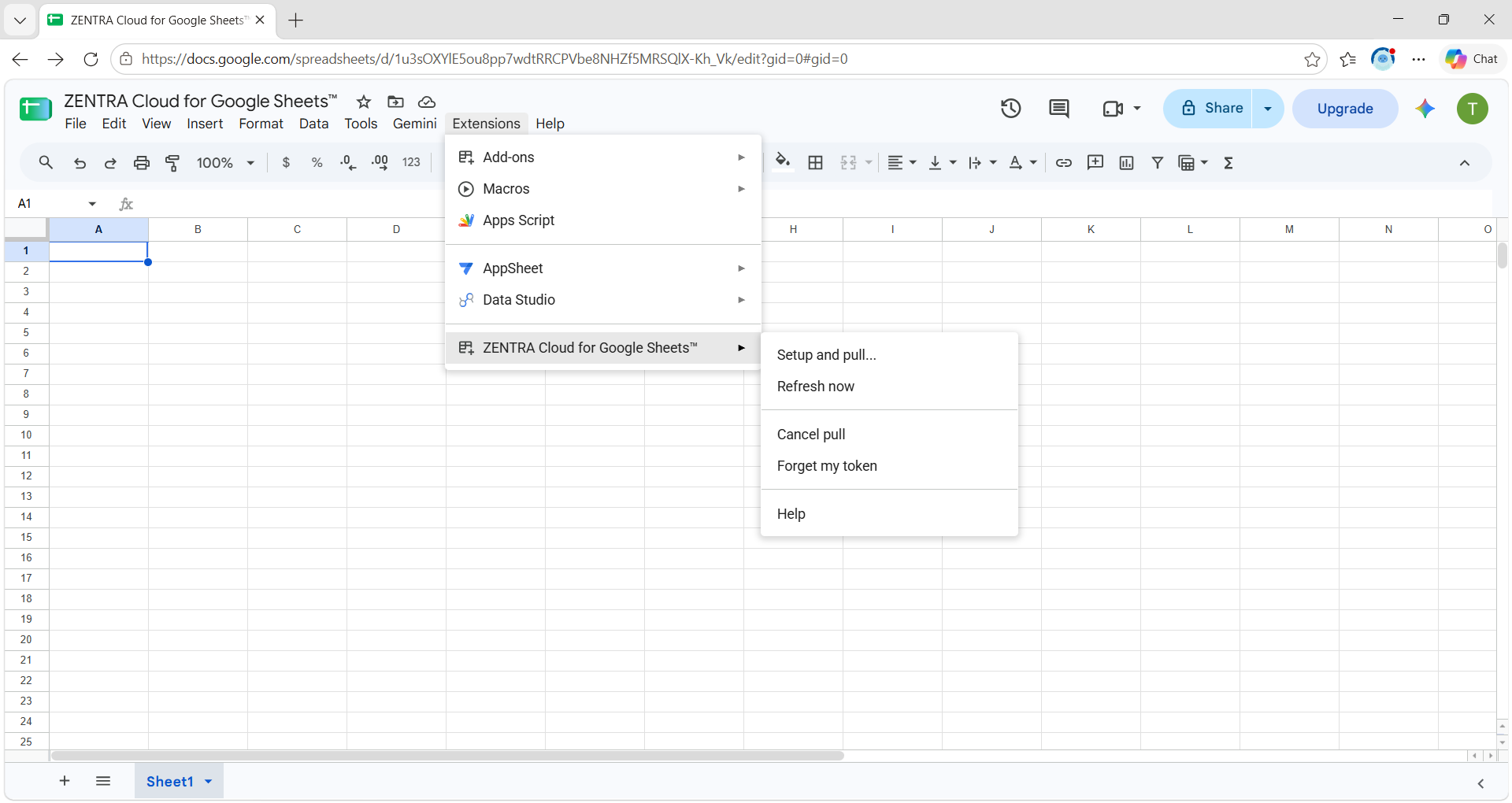
After installing, the add-on appears under Extensions → ZENTRA Cloud for Google Sheets™ in every spreadsheet you open.
3. Get your API token
In ZENTRA Cloud, go to User Account → Integrations → Show Token and copy the token. You paste it into the sidebar in the next section.
4. Open Setup and pull
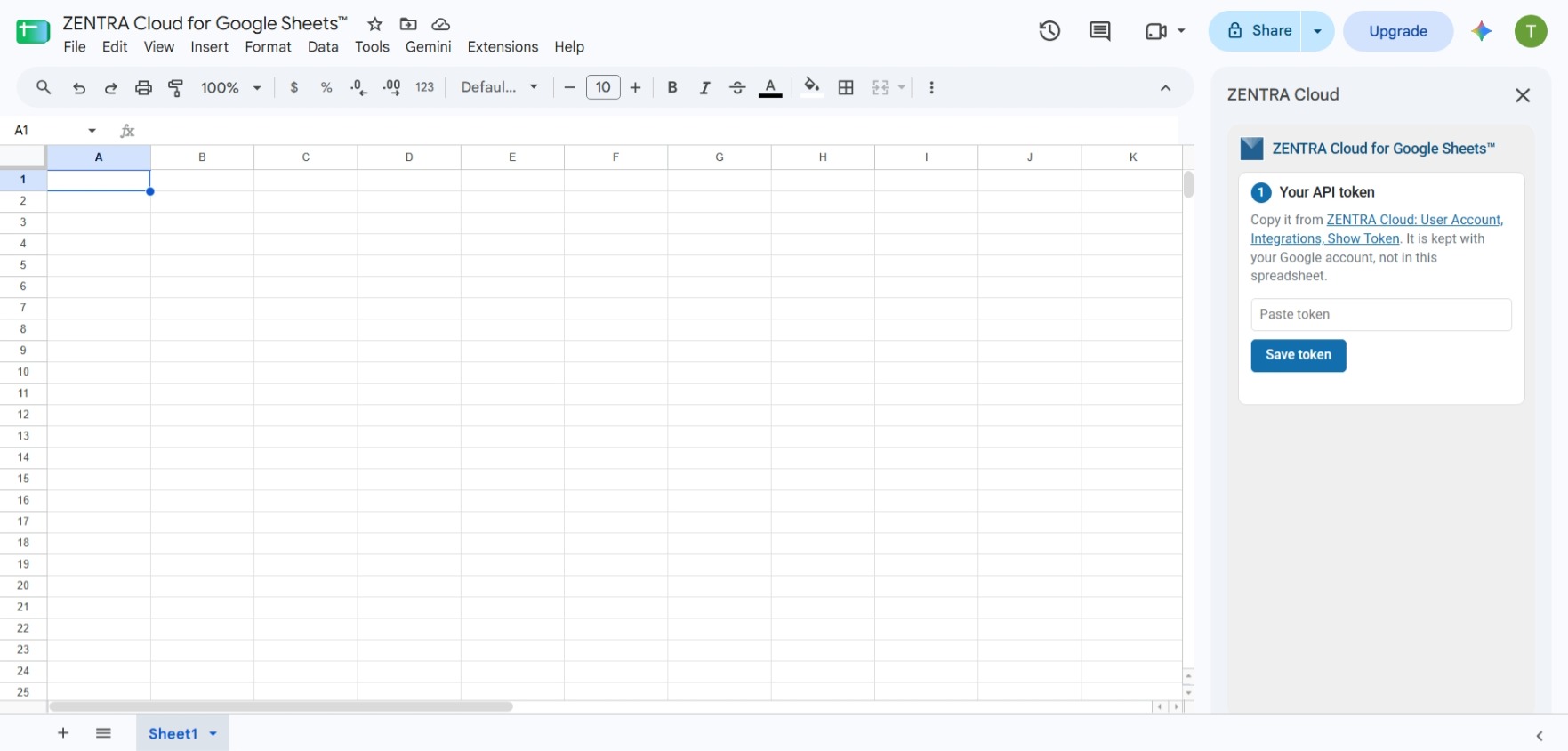
In the spreadsheet you want to fill, select Extensions → ZENTRA Cloud for Google Sheets™ → Setup and pull…. The ZENTRA Cloud sidebar opens on the right.
If the sidebar shows Permissions needed with a Grant permissions link, a newer version of the add-on needs a permission you have not granted yet. Select Grant permissions, approve the request, then close the sidebar and open Setup and pull… again.
5. Your first pull
1. Your API token
- Paste the token into the box.
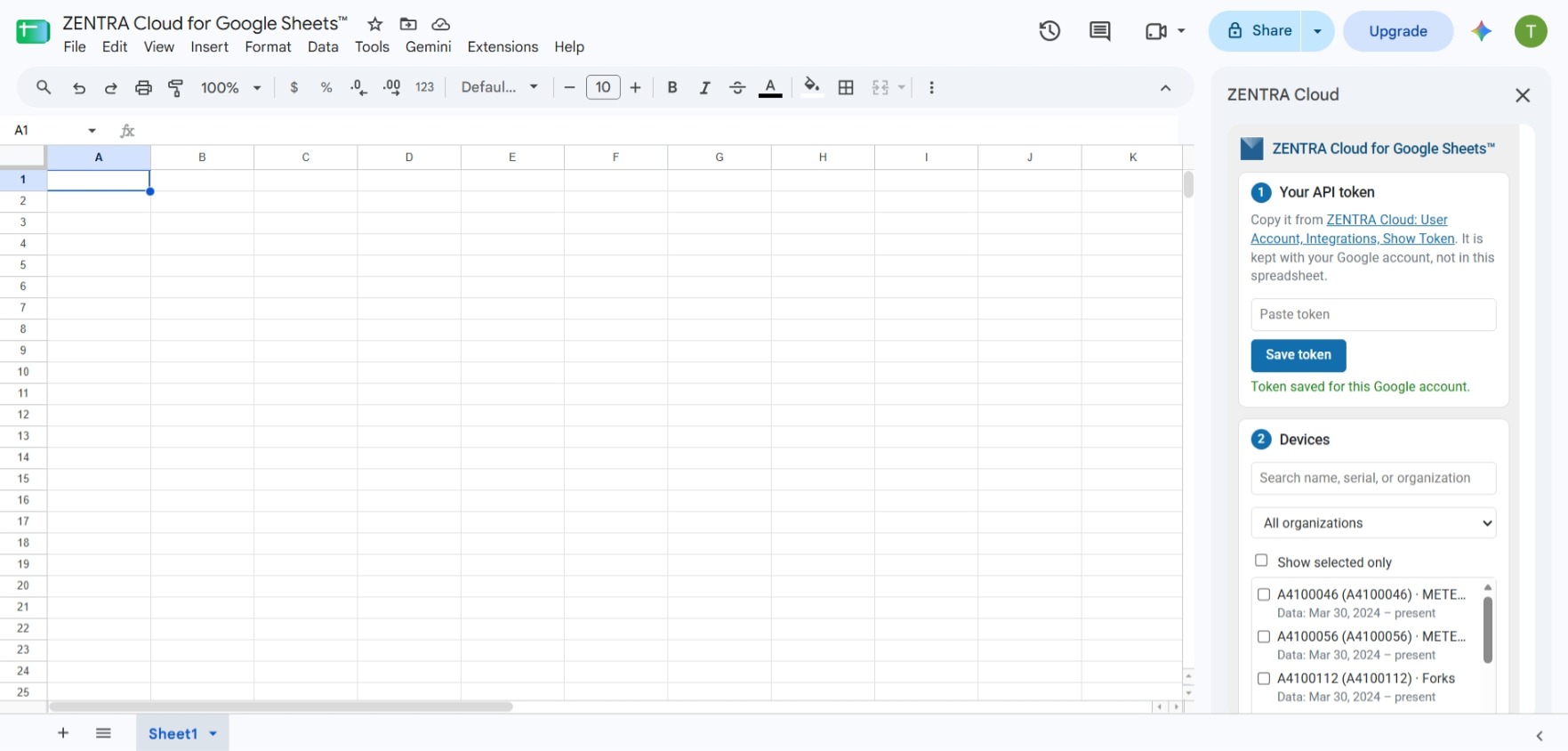
- Select Save token. The sidebar confirms with "Token saved for this Google account."
The token is checked against ZENTRA Cloud before it is stored. It is kept with your Google account, not inside the spreadsheet, and it works in every sheet where you use the add-on. If you share the sheet with a colleague, they paste their own token; they never see yours.
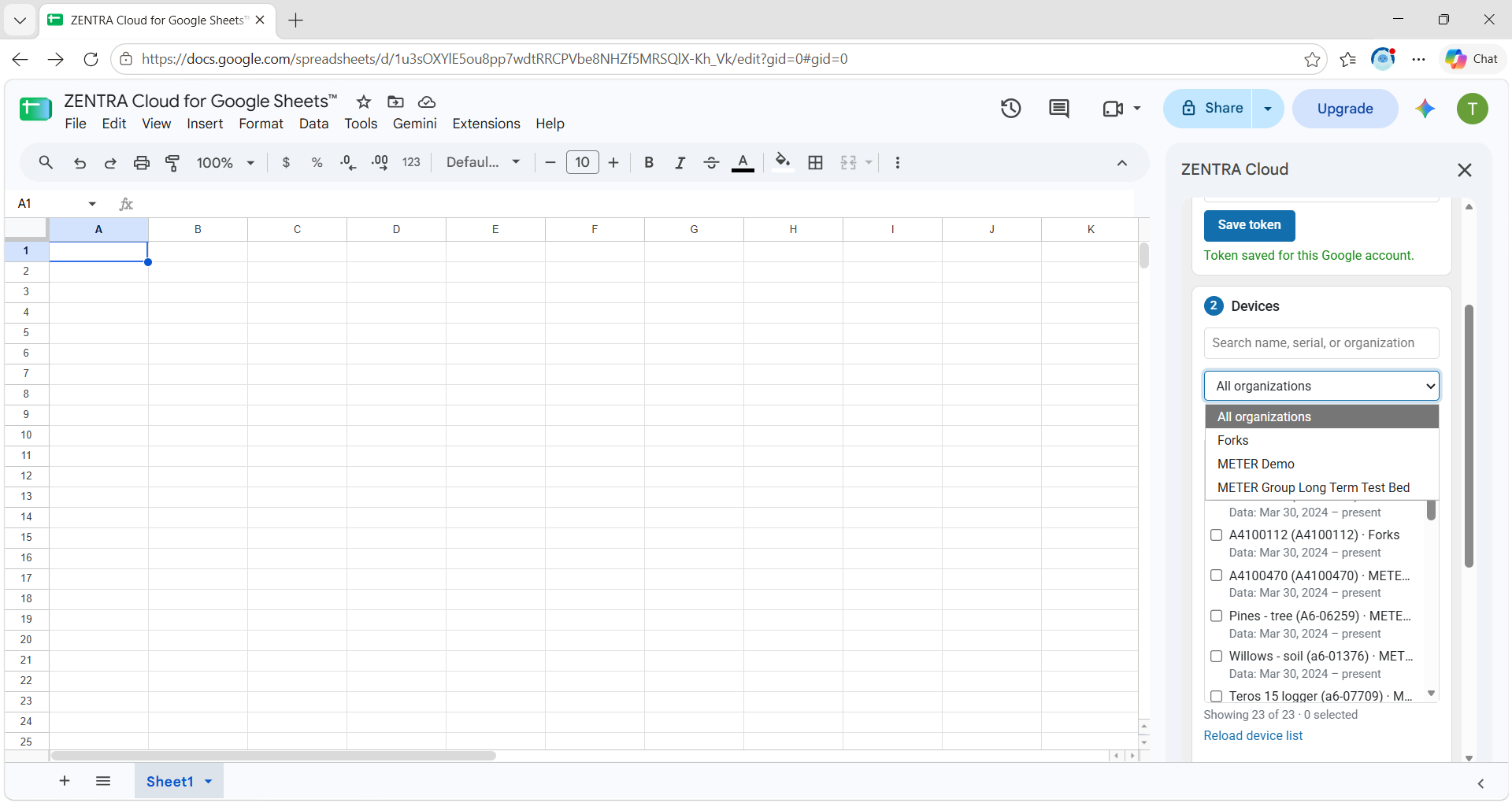
2. Devices
The list shows every device your token can reach. Each entry reads <device name> (<serial>) · <organization>, with the device's stored data range underneath, for example Data: 3 Jan 2025 – present. A device with no readings yet shows No data yet.
- Type in Search name, serial, or organization to narrow the list.
- (Optional) If your devices are across more than one organization, choose one in the organization menu, or All organizations.
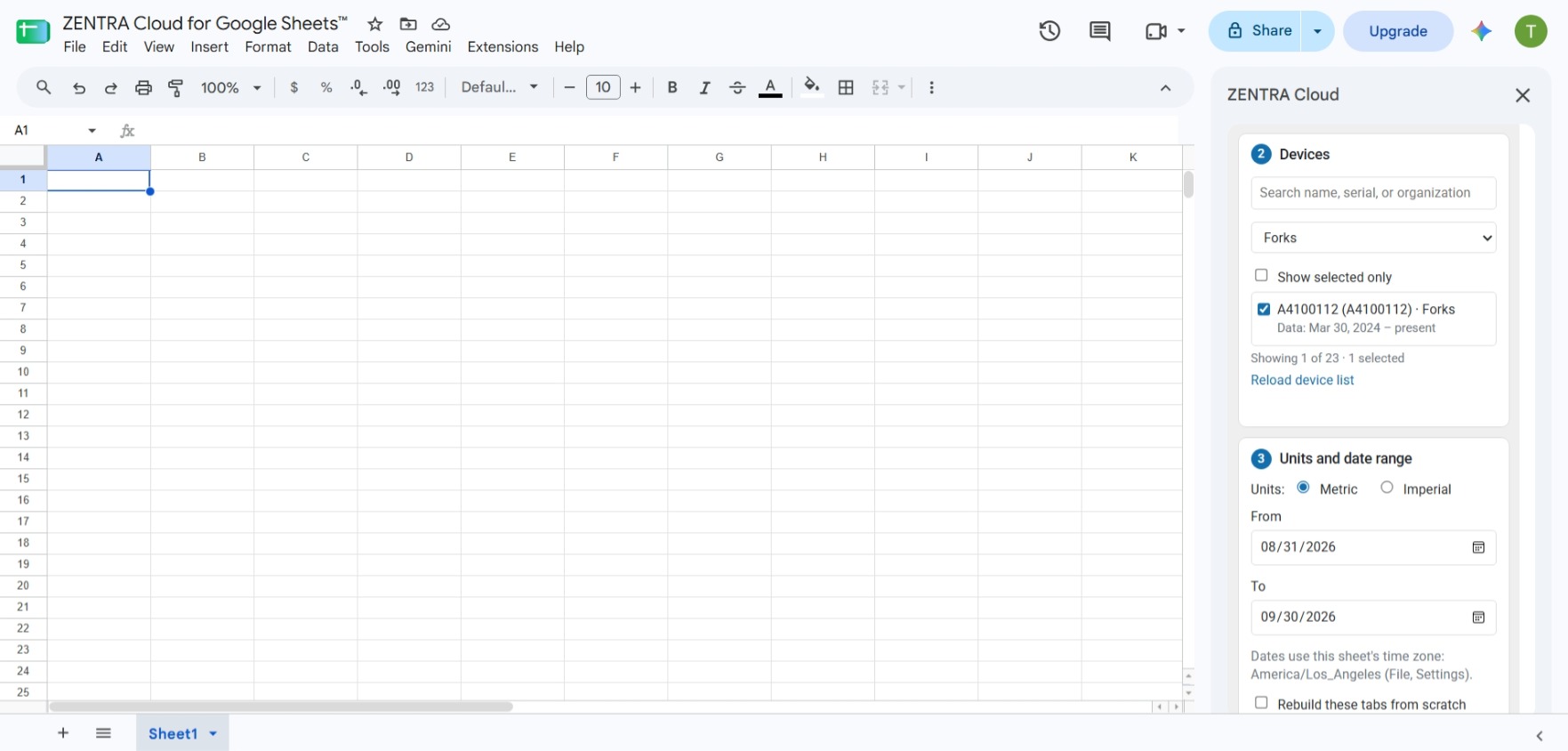
- (Optional) Tick Show selected only to review your choices.
Tick the devices you want. The count under the list reads, for example, "Showing 4 of 12 · 2 selected". Devices you ticked stay selected when a search hides them.
Some devices appear greyed out and cannot be ticked. Hovering over one explains why: "Your account can see this device but cannot read its data." Ask that device's organization administrator for the User role or higher.
If devices were added or shared with you after you opened the sheet, select Reload device list.
3. Units and date range
- Choose Metric (the default) or Imperial.
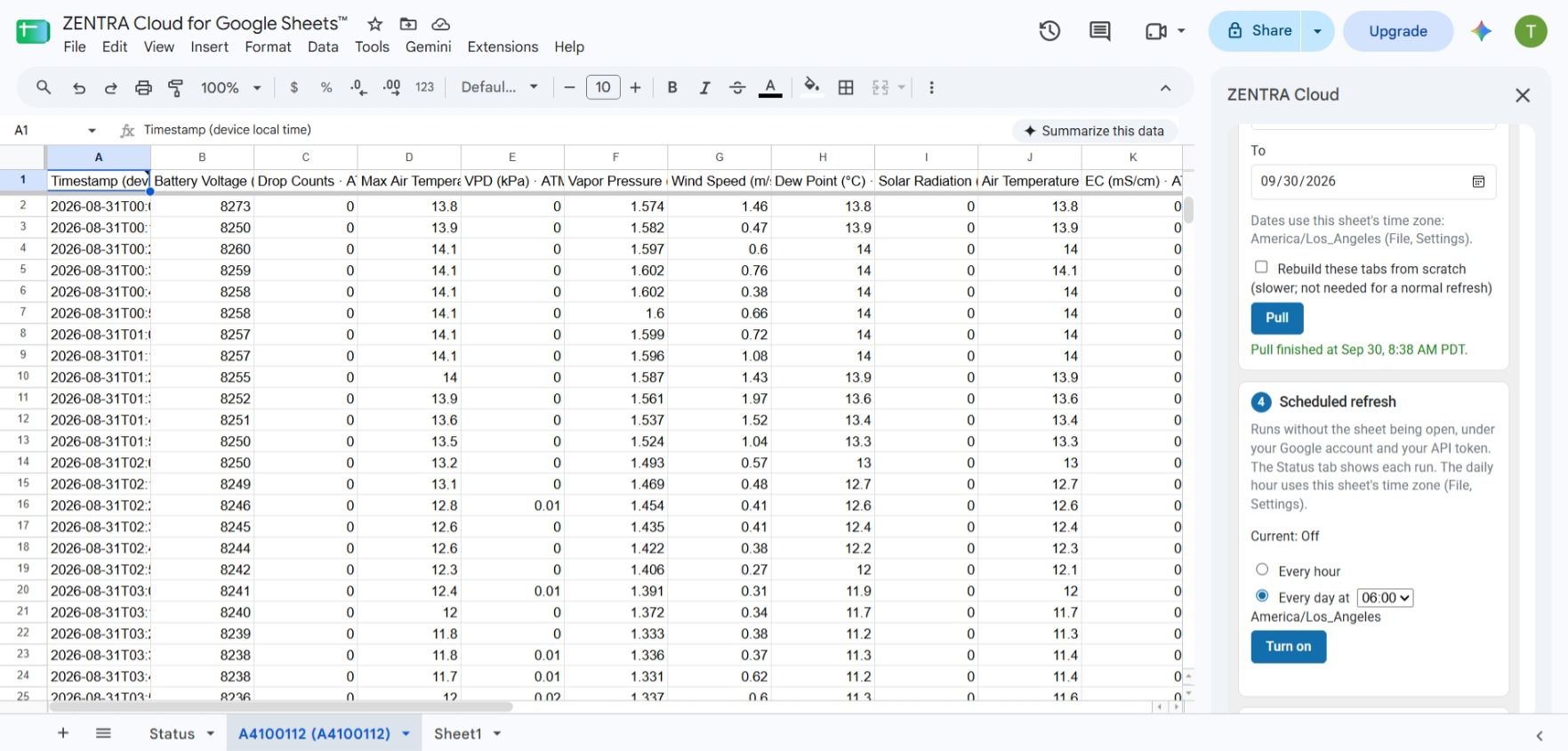
- Set From and To. The dates use the spreadsheet's time zone, which the sidebar names underneath (File → Settings changes it).
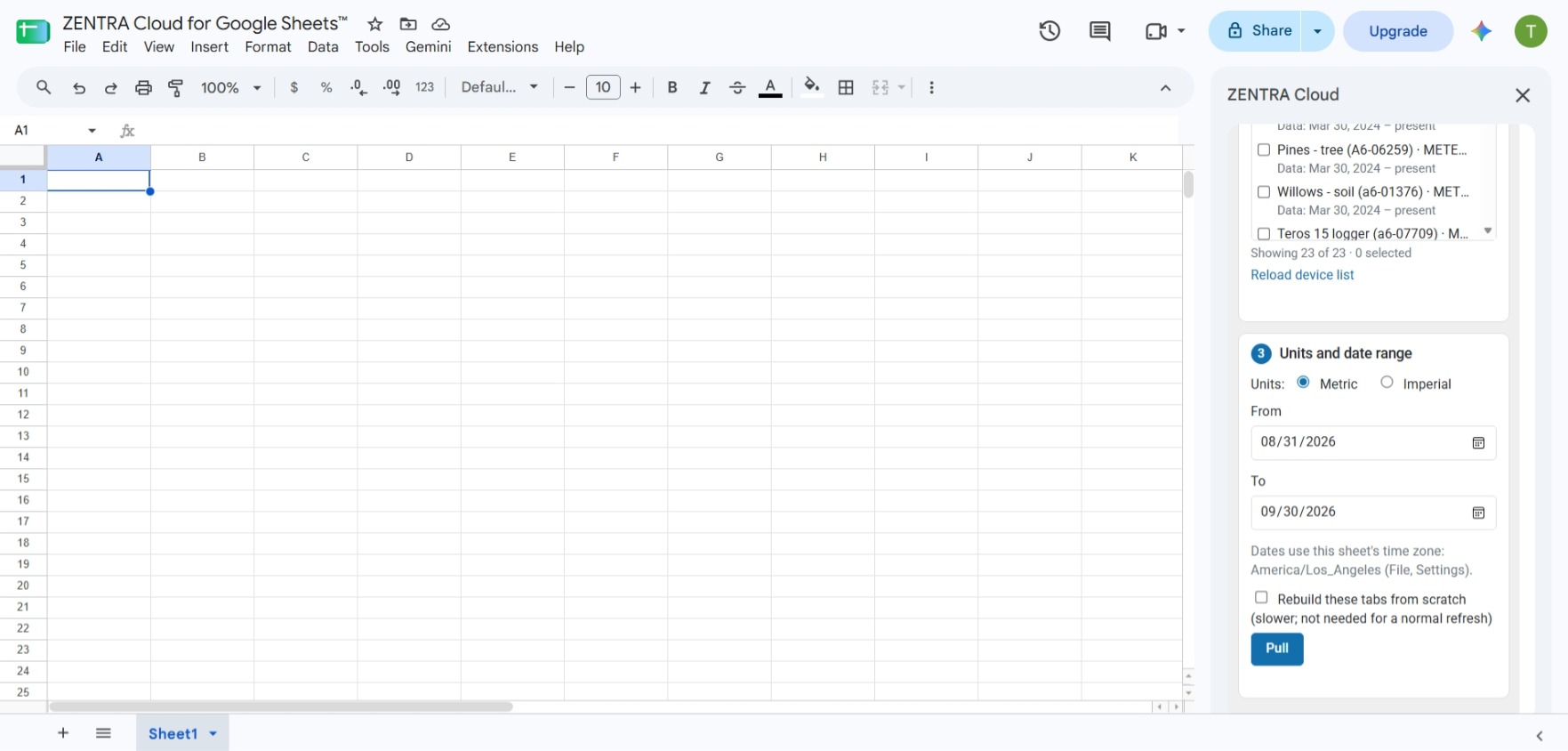
- Leave Rebuild these tabs from scratch (slower; not needed for a normal refresh) unticked for a normal pull. See 10. Behavior to know for when to use it.
- Select Pull.
Watching it run
The Progress box reports as the pull runs. A long pull is fetched in slices:
- With the sidebar open, slices run back to back and the pull finishes as fast as the rate limits allow: "It keeps going while this panel is open, otherwise within the hour."
- If you close the sidebar or the spreadsheet, the pull carries on by itself, one slice per hour, until it is done. A long first pull finishes much sooner if you keep the sidebar open.
When it finishes, the box shows a summary per device, for example:
Pull finished at Setp 30, 12:25 PM PDT.
          A4100110 (A4100110): 1 of 1 months, 8 rows added
          A4100112 (A4100112): 1 of 1 months, 6 rows added
Times in the sidebar are shown in your own time zone.
To stop a pull early, select Cancel pull in the Progress box or Extensions → ZENTRA Cloud for Google Sheets™ → Cancel pull.
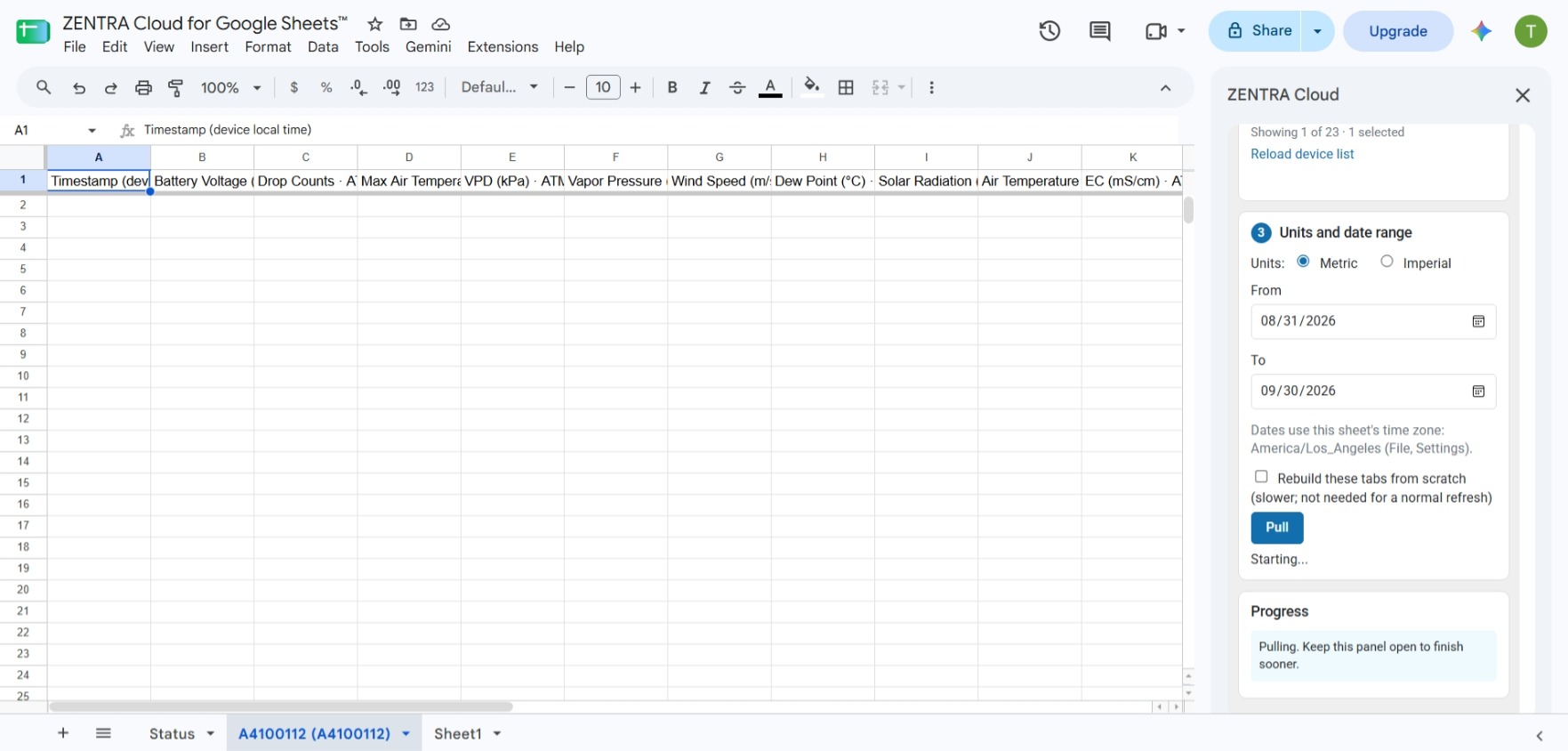
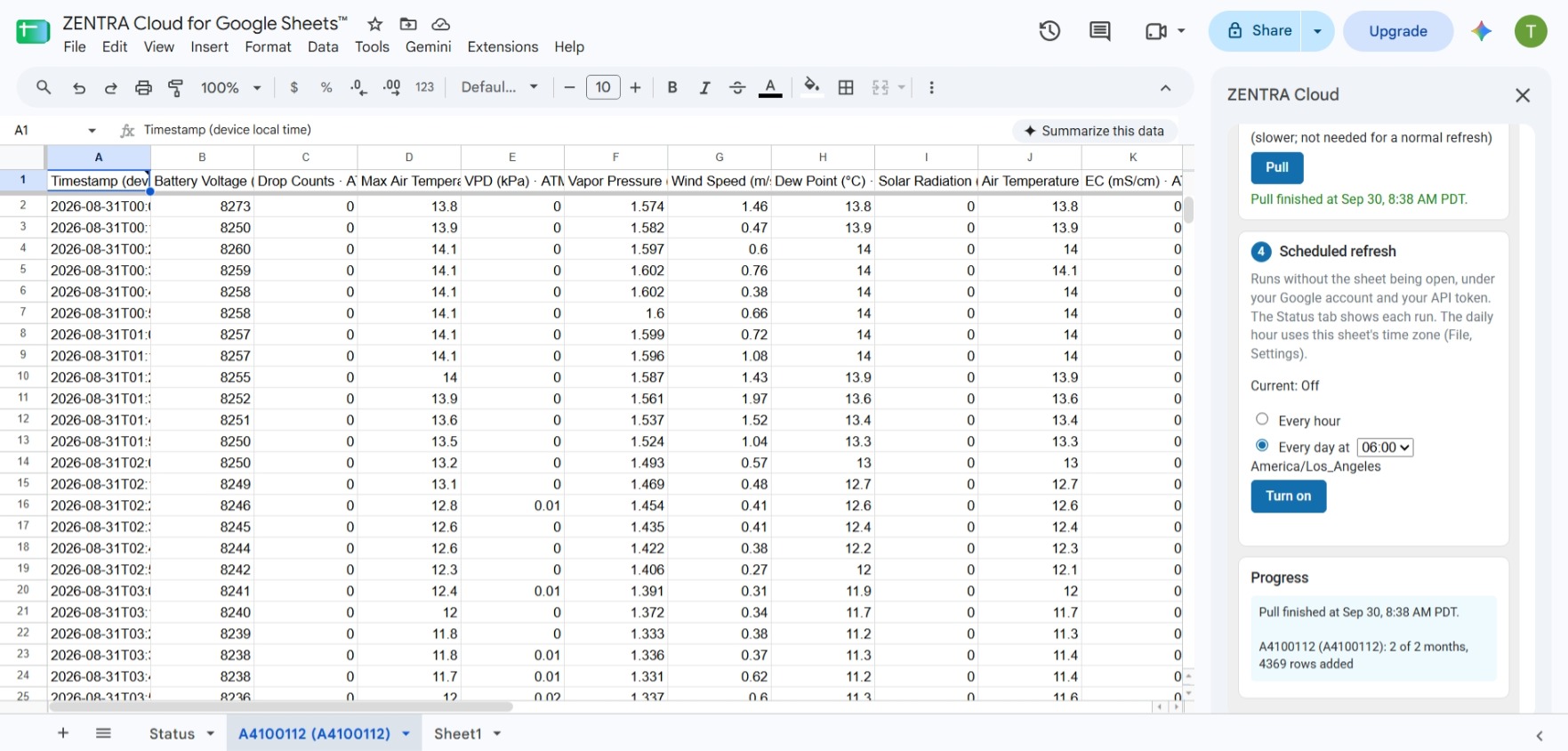
6. What lands in the sheet
- One tab per device, named
<device name> (<serial>), for example A4100110 (A4100110). The(<serial>)part is how the add-on finds the tab again, so renaming a device in ZENTRA Cloud does not orphan its data. Long device names are shortened before the serial to fit the 100-character tab-name limit. - A frozen header row. Column A is Timestamp (device local time). Every measurement column is named
<measurement> (<unit>) · <sensor name> port <n>, with@ <position>added when the sensor reports one, for example Battery Percent (%) · Battery port 2. - Rows in time order, oldest first. When a pull adds readings older than the tab already holds, the tab is sorted by time once the pull ends. Whole rows move, so anything you typed beside a reading stays with it.
- An append-only column layout. New measurement columns are added at the right; existing columns never move. Formulas, charts and pivot tables built on a tab keep pointing at the right data after a refresh.
- A note on cell A1 with the last run's result and a per-device summary, such as "3 of 13 months, 4,102 rows added" or "already up to date". Hover over A1 to read it.
Columns you add yourself beside the data are left alone by a refresh.
7. Read the Status tab
The Status tab is the first tab in the sheet and the place to look when something seems wrong.
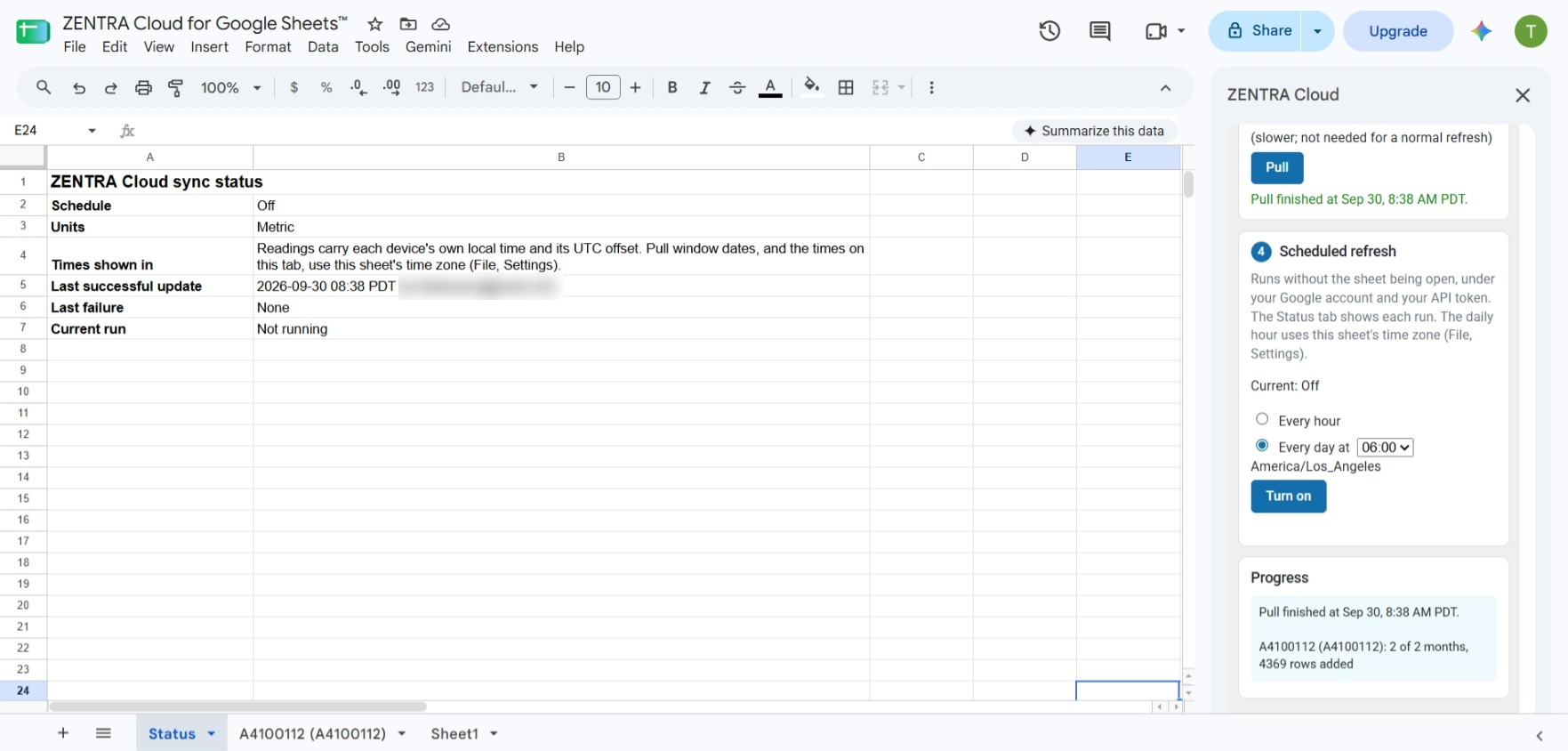
Row | What it tells you |
Schedule | Whether scheduled refresh is on, how often it runs, and which Google account runs it |
Units | Metric or Imperial |
Times shown in | Which times are which: readings carry each device's own local time and UTC offset, while the pull window dates and the times on this tab use the sheet's time zone |
Last successful update | When the last good run finished, and the account that ran it |
Last failure | When the last failure happened, the account, and the reason |
Current run | Whether a pull is running right now |
Data may be stale | Appears only when the last refresh failed, or when a schedule has not run for more than two of its periods |
The account names on this tab are visible to anyone who can view the sheet.
8. Refresh your data
Extensions → ZENTRA Cloud for Google Sheets™ → Refresh now reuses the devices, dates and units from your last pull, extended to today, so it is a one-click top-up. If nothing has been pulled yet, it says: "Nothing to refresh yet. Use Extensions, ZENTRA Cloud for Google Sheets™, Setup and pull first."
To change devices, dates or units, use Setup and pull… instead.
9. Turn on scheduled refresh
Section 4 Scheduled refresh in the sidebar keeps the sheet up to date without anyone opening it. It appears once you have saved a token and run one pull.
- Choose Every hour, or Every day at and an hour.
- Select Turn on. The sidebar confirms, for example: "Scheduled refresh is on: Daily at 08:00 America/Los_Angeles, run by name@example.com."
- To stop it, select Turn off.
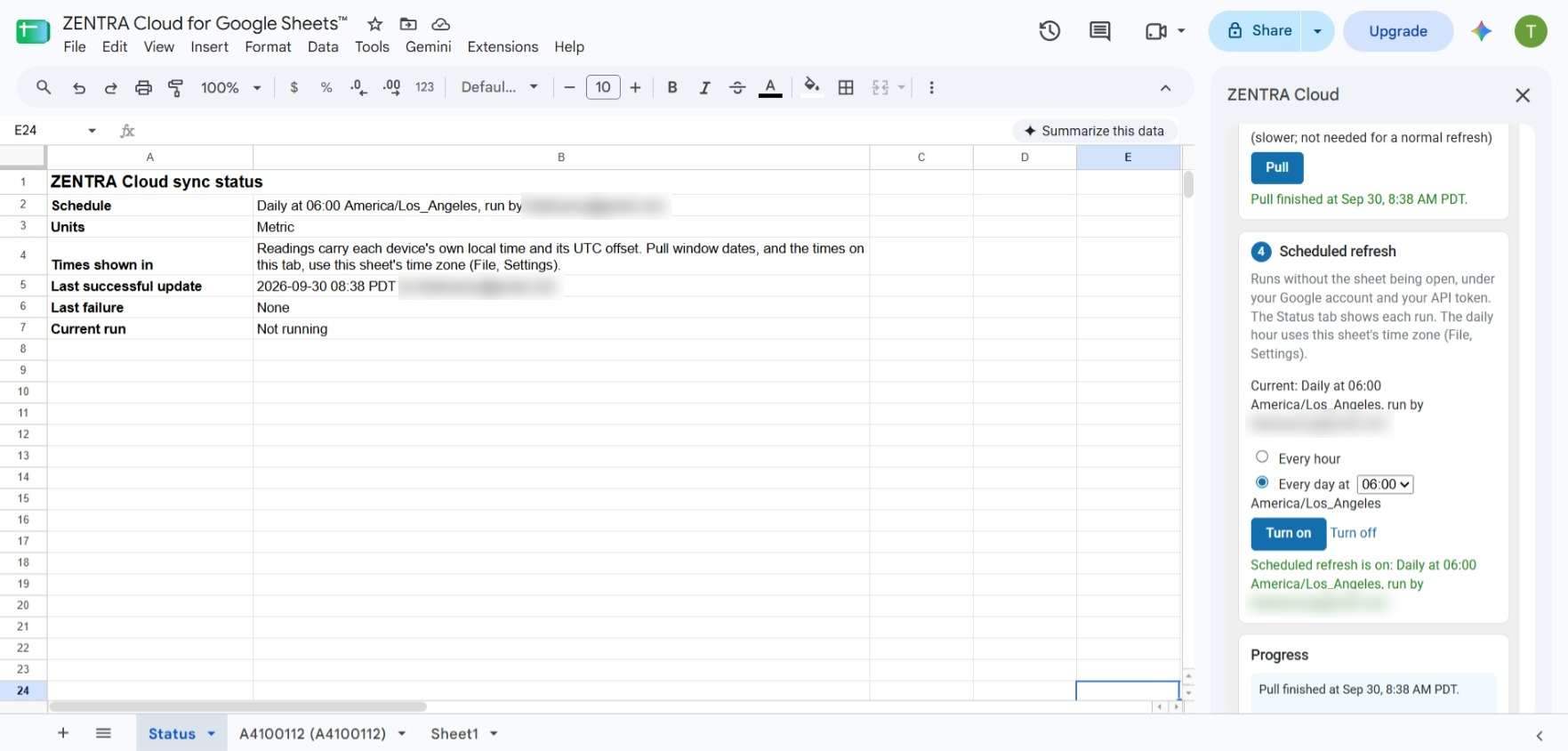
Rules worth knowing:
- It runs as the person who turned it on, using that person's Google account and API token. If they leave or remove their token, the schedule fails and the Status tab says why.
- The daily hour follows the spreadsheet's time zone (File → Settings). The run starts within the hour after the time you choose.
- One schedule per sheet. If someone else already turned it on, you are asked "This sheet's schedule is run by . Replace it with a schedule run by your account?" and offered a Replace button.
- The account running it is visible on the Status tab and in the sidebar to anyone who can view the sheet.
- Failures are recorded, not hidden. If the token is gone or no devices are selected, the Status tab says so. If a pull is already running, the scheduled run skips that turn and says why.
10. Behavior to know
Interior gaps are not refilled. A refresh extends the data backwards from the earliest row and forwards from the latest one. It does not look for holes in between, so rows you deleted by hand, or readings a device uploaded late, are not picked up by a normal refresh.
Rebuilding a tab. To fill gaps, or to start a tab over, tick Rebuild these tabs from scratch (slower; not needed for a normal refresh) before pulling. The selected tabs are cleared and the whole date range is fetched again. Anything you built inside those tabs is cleared too.
Timestamps arrive as text. Each timestamp is written in the device's own local ISO format, including its UTC offset, so the offset is never lost. Google Sheets™ therefore treats the cell as text. To chart against time, convert it in a helper column:
=DATEVALUE(MID(A2,1,10))+TIMEVALUE(MID(A2,12,8))Reading times and pull windows can use different zones. Readings carry each device's own local time and offset, while the From and To dates use the sheet's time zone. For a device in another time zone, the first and last rows can sit a few hours outside the dates you chose.
Switching units rebuilds the tabs. Unit names are part of the column headers, so changing Units between Metric and Imperial clears and re-pulls the selected device tabs. You are asked to confirm first: "Changing units clears and re-pulls the selected device tabs. Continue?" Select Continue to go ahead.
Long first pulls take a while. Readings are fetched in calendar-month windows, which is why the progress summary counts months. Keep the sidebar open for the fastest pull; closed, a pull advances once an hour. Pull a year or two at a time rather than a decade at once. For a large history, the Python SDK or R client is the better tool.
Data older than about 2.5 years. ZENTRA Cloud does not keep readings older than roughly 2.5 years. A window that falls entirely before the earliest stored data reports that "the requested window is before the earliest data ZENTRA Cloud holds for this device".
1. Rate limits
ZENTRA Cloud limits how often the API can be called. Each endpoint allows a burst of 5 requests and then refills at 1 request per minute; about 300 seconds idle restores the full burst.
Endpoint | Counted per | Burst | Steady state |
List Devices ( | User, from the API key | 5 | 1/min |
Get Device Readings ( | Device | 5 | 1/min |
Readings are counted per device, not per caller. Everyone authorized for a device shares that device's budget, so a wait the add-on reports may be caused by a colleague pulling the same device, not by anything wrong with your sheet. The add-on handles this for you: when it is told to wait, it waits and then carries on.
Full details: Rate Limiting
12. Move from the copied template
If you used the earlier copy-the-template version, you can switch an existing sheet to the add-on. Your device tabs, and any charts or formulas built on them, carry over. Your token, device selection and schedule do not; you set them again once.
- If someone else turned on scheduled refresh in this sheet (the Status tab's Schedule row names them), ask them to open ZENTRA Cloud → Setup and pull… and select Turn off first. Their schedule belongs to their account, and deleting the script does not stop it.
- In your copied sheet, open ZENTRA Cloud → Setup and pull…. If scheduled refresh is on, select Turn off. Close the sidebar.
- Select ZENTRA Cloud → Cancel pull, then ZENTRA Cloud → Forget my token.
- Select Extensions → Apps Script. Delete every file in the file list (the three dots next to each file, then Delete). Close the Apps Script tab and reload the sheet. The ZENTRA Cloud menu is gone.
- Install the add-on (see 2. Install the add-on).
- Select Extensions → ZENTRA Cloud for Google Sheets™ → Setup and pull…. Enter your token, pick the same devices and units, and select Pull. Refresh continues from the last row in each tab.
If your tabs were in Imperial and you pull in Metric (or the reverse), the add-on asks before it clears and re-pulls those tabs.
13. Troubleshooting
What you see | What it means | What to do |
"Google could not tell which of your signed-in Google accounts to use…" | Several Google accounts are signed in to your browser, and the default one is not the one using the add-on | Open the sheet in a window signed in to one Google account only, such as a private window or a separate browser profile |
Permissions needed with a Grant permissions link | A newer version of the add-on needs a permission you have not granted | Select Grant permissions, approve, then reopen Setup and pull… |
"ZENTRA Cloud did not accept your API token. It may have been revoked or mistyped. Copy a fresh token from app.zentracloud.io…" | The token is wrong, or it has been revoked | Copy a fresh token from User Account → Integrations → Show Token and save it again |
"Your account does not have access to this device's data. Ask the device's organization administrator to grant you the User role or higher." | Your account can see the device but not read from it | Ask that device's organization administrator for the User role or higher |
A device reported as not found | The device was removed, or stopped being shared with you | Select Reload device list and choose your devices again |
A message naming a wait time | The rate limit was reached | Nothing; the add-on waits and continues. This is normal on long first pulls, and can also happen when other people pull the same device at the same time |
"Could not reach ZENTRA Cloud. Check your internet connection and try again in a minute." | Network problem between Google and ZENTRA Cloud | Check your connection and try again shortly |
"ZENTRA Cloud had a temporary problem answering. Try again in a few minutes." | ZENTRA Cloud returned a server error | Wait a few minutes and pull again |
"It cannot continue on its own right now, so keep Extensions, ZENTRA Cloud for Google Sheets™, Setup and pull open until it finishes, or use Cancel pull." | Google would not let the add-on schedule the pull's hourly continuation | Keep the sidebar open until the pull finishes, or cancel it and try again later |
"The pull stopped after repeated errors. Use Extensions, ZENTRA Cloud for Google Sheets™, Setup and pull to start it again." | Too many failures in a row, so the run stopped | Fix the cause above, then start a new pull |
Messages you may see while setting up a pull:
- "Enter your API token first."
- "Select at least one device."
- "Enter both dates as YYYY-MM-DD."
- "The end date must be after the start date."
- "A pull is already running. Wait for it to finish, or use Cancel pull."
- "Reload the device list, then choose devices again."
14. Remove your token or the add-on
- Extensions → ZENTRA Cloud for Google Sheets™ → Forget my token deletes your saved token from your Google account, for every sheet that uses the add-on. It does not touch data already in your sheets, and it does not affect anyone else's token.
- To remove the add-on, select Extensions → Add-ons → Manage add-ons, then choose Uninstall on ZENTRA Cloud for Google Sheets™. Your sheets and the data in them stay as they are.
Google Sheets™, Google Drive™ and Google Workspace™ are trademarks of Google LLC.
How did we do?